
AI Warehouse (Tenstorrent TT-Quietbox) Deployment Guide
This guide provides step-by-step instructions for setting up and configuring your Tenstorrent TT-QuietBox workstation. It covers unboxing, network configuration, connecting the Baseboard Management Controller (BMC), accessing the pre-installed Ubuntu 22.04 LTS, and setting up Tenstorrent software and models.
This guide provides step-by-step instructions for setting up and configuring your Tenstorrent TT-QuietBox workstation. It covers unboxing, network configuration, connecting the Baseboard Management Controller (BMC), accessing the pre-installed Ubuntu 22.04 LTS, and setting up Tenstorrent software and models. Please follow each section carefully to ensure a successful setup.
Introduction
Thank you for purchasing the Tenstorrent TT-QuietBox, a high-performance, silent, water-cooled workstation powered by four Blackhole™ p150c Tensix Processors. This guide is intended for end-users responsible for configuring the TT-QuietBox. The steps include unboxing the system, setting up network connectivity, connecting the BMC, accessing the pre-installed Ubuntu 22.04 LTS, and configuring Tenstorrent software for AI model deployment.
Safety Information:
- Ensure the workstation is powered off and unplugged during any physical connections.
- Follow all safety protocols when handling the workstation.
- The workstation weighs approximately 79.2 lbs (35.9 kg). Unboxing and lifting require at least two people for safe maneuverability.
- Do not proceed with unboxing or installation if you suspect shipping damage to the system. Contact [ai]levate support.
- The system ships with sufficient liquid coolant for long-term operation; adding or purchasing coolant is not necessary.
Tenstorrent TT-Quietbox Setup Checklist
This checklist is designed for clients installing and configuring the Tenstorrent TT-Quietbox server. It ensures all necessary steps are completed for a successful unboxing, setup, and system setup. Please follow this checklist in conjunction with the full *Tenstorrent TT-*Quietbox End-User Documentation and coordinate with [ai]levate support as needed.
Rack Installation Checklist
-
Verify Workspace Availability
- Choose a clear, stable, and spacious area for the TT-QuietBox workstation.
- Ensure the workspace can support the system’s weight (79.2 lbs / 35.9 kg) and dimensions (10” x 21.5” x 20”).
- Confirm that all vents are clear of obstructions or other objects.
-
Inspect Package Contents
- Verify the presence of all components listed in the Package Contents section:
- Tenstorrent TT-QuietBox Blackhole (TW-04002) system.
- C13 Power Cable, 1.8m/6ft.
- 8x QSFP-DD 800GbE Cable, 0.6m/2ft.
- VGA-to-HDMI Adapter
- Check for any visible damage to components. Contact [ai]levate support ([email protected]) if items are missing or damaged.
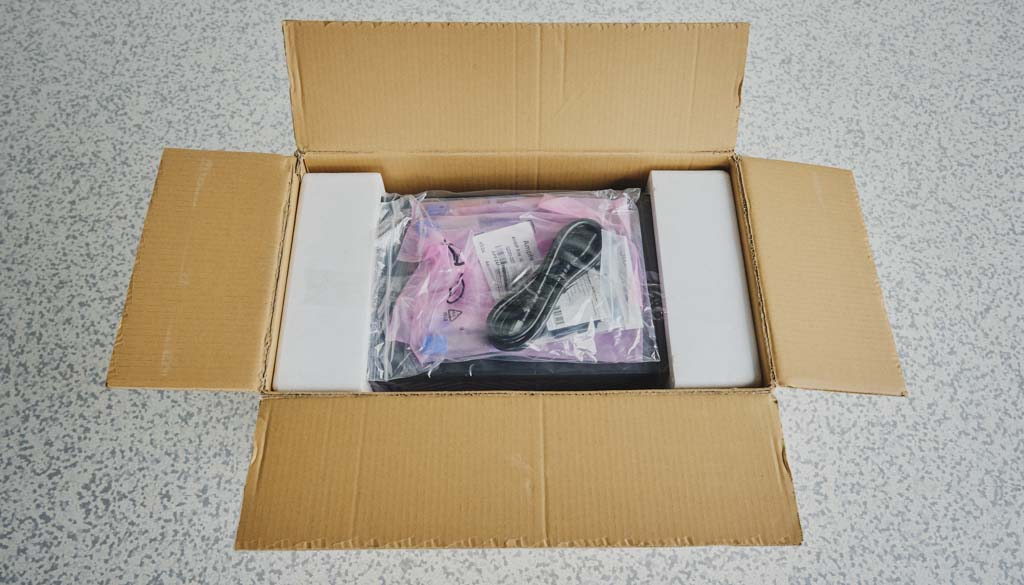
- Verify the presence of all components listed in the Package Contents section:
-
Prepare Power Requirements
-
Confirm the power supply meets the minimum requirements:
- 200V input voltage required for TW-04002 configuration.
- Power usage: 1650W 80 PLUS Platinum
- Ensure access to appropriate power outlets (C13-compatible).
- Verify power redundancy with dual PSUs and test power connections.
Post-Unboxing Installation Checklist
-
Connect Power Cables
-
Plug the C13 Power Cable into the TT-QuietBox’s PSU and a compatible power outlet.
-
Verify the PSU indicator lights are active.
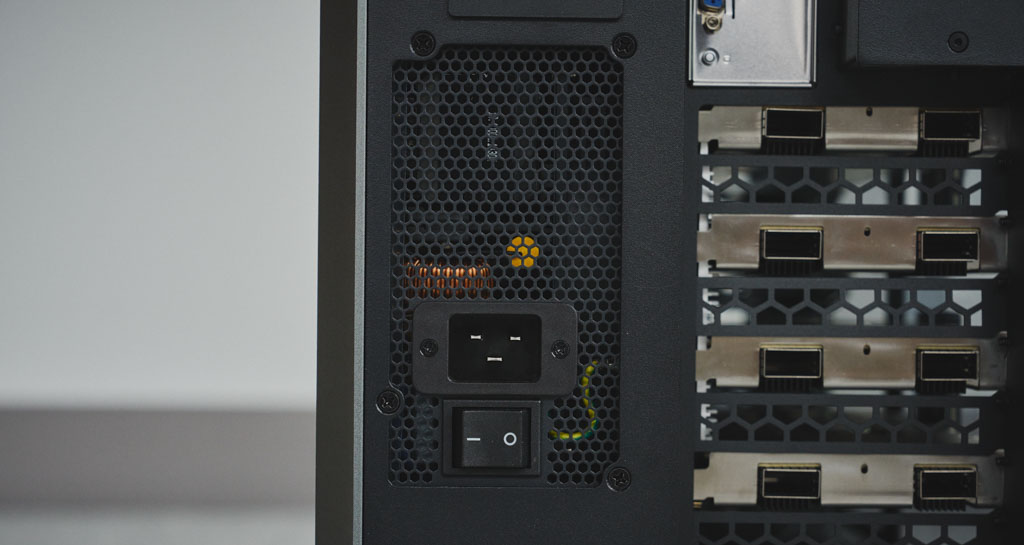
-
Connect QSFP-DD Cables (TW-04002 Configuration)
-
Refer to the system topology diagram for port and slot numbering.
-
Connect the eight QSFP-DD 800GbE cables to create the processor mesh for the four Blackhole™ p150c processors (4 ports per card, 16 ports total).
-
Ensure each cable is aligned correctly and clicks into place; do not force the connections.
-
Verify connections by checking link status LEDs on QSFP-DD ports.
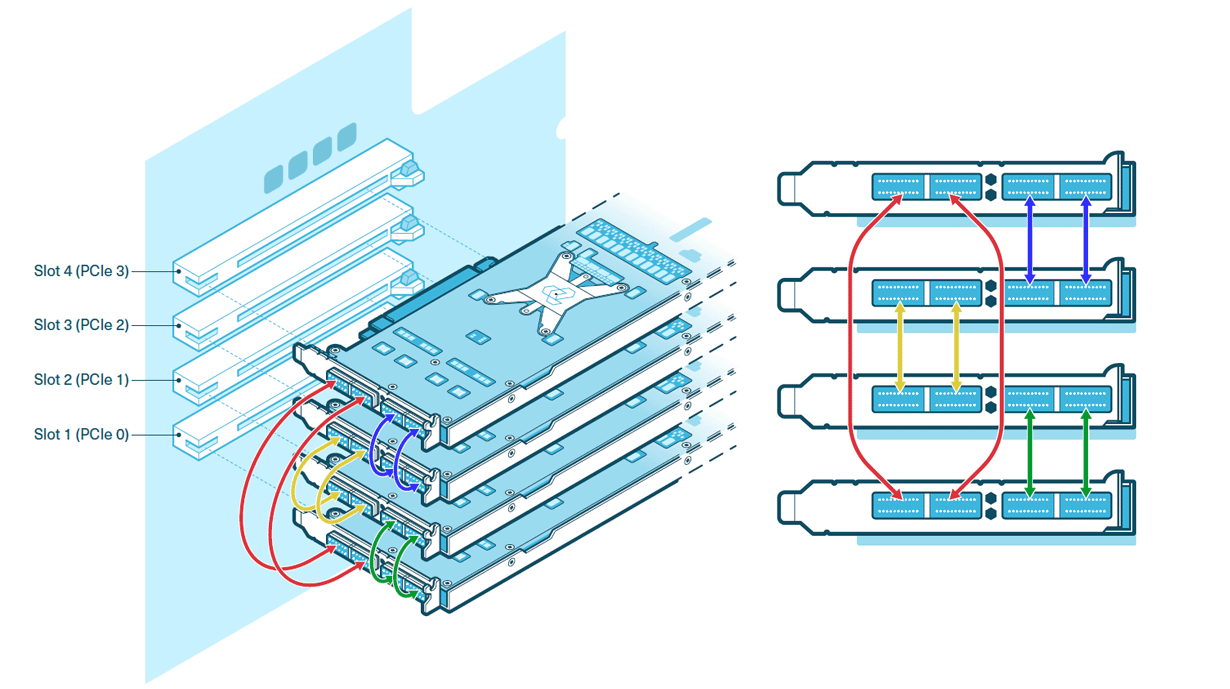
-
Connect Network Cables
-
Plug an Ethernet cable into the IPMI port (RJ45) for Baseboard Management Controller (BMC) access and connect to a network switch or router.
-
Connect Ethernet cables to the RJ45 LAN ports for host system connectivity:
- 2x RJ45 10GBase-T (via Intel® X710) for high-speed connectivity.
- 2x RJ45 1GBase-T (via Intel® I210) for additional connectivity.
-
Record the MAC addresses of the RJ45 ports (found on the system label or via BMC interface).
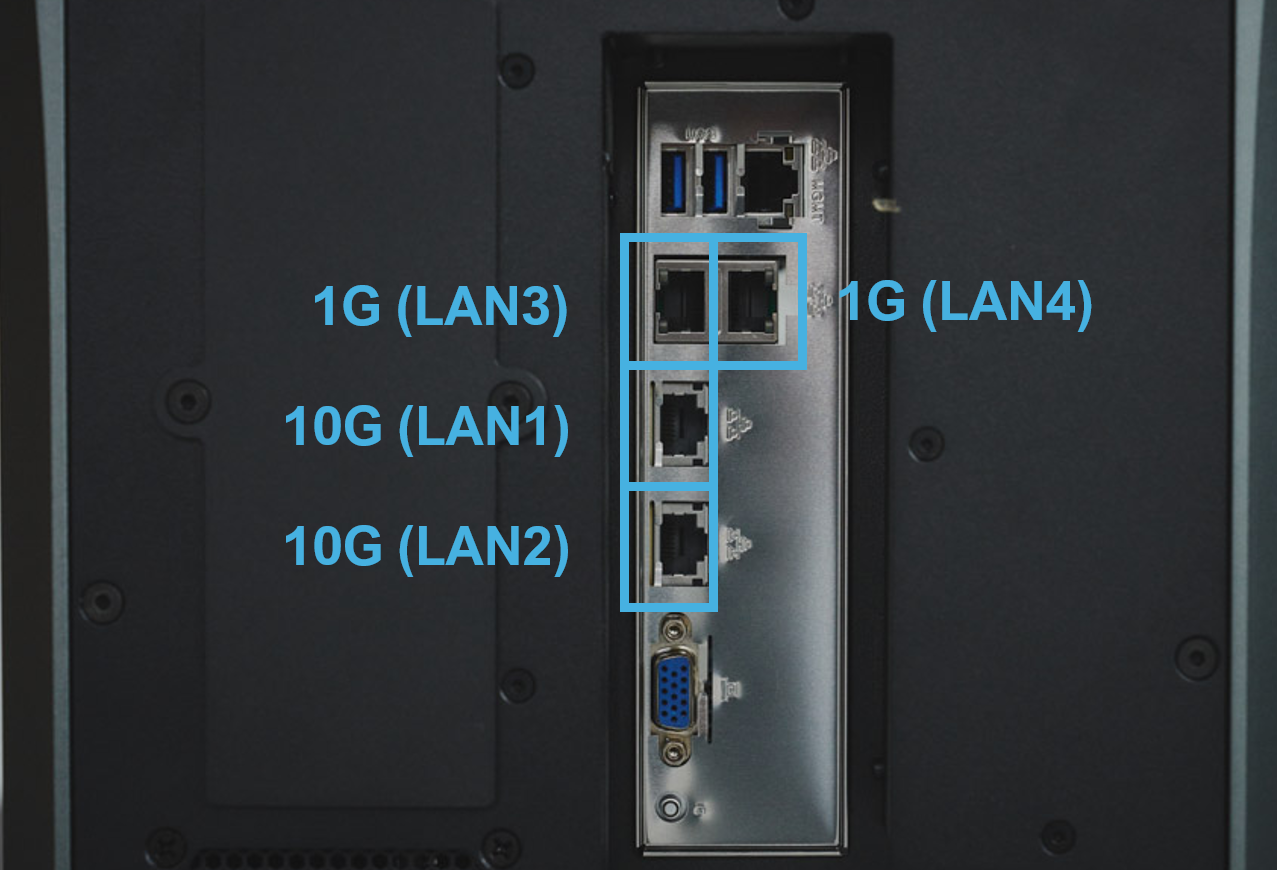
-
Connect Peripherals
-
Connect a monitor (using the VGA port; a VGA-to-HDMI adapter is included if needed), keyboard, and mouse to the USB 3.1 Gen 1 Type-A ports (2x front, 2x rear).
-
Ensure both VGA and USB-A connectors are plugged in for video signal transmission.
-
Verify Environmental Conditions
-
Ensure the workstation is in a well-ventilated area with adequate airflow.
-
Maintain ambient temperatures within the recommended range for the Blackhole™ p150c Tensix Processors (refer to Environmental Specifications).
-
Avoid environments with excessive dust, moisture, or vibration.
-
Confirm that all vents are clear of obstructions or other objects.
-
Provide Network Information to [ai]levate
-
Compile the following details for submission to [ai]levate support ([email protected]):
- BMC IP Address: Static IP assigned during BMC configuration.
- BMC Credentials: Username and password from the system label (default: admin / ZTSI-00025).
- Host Network Details:
- Preferred static IP or DHCP confirmation for the 2x RJ45 10GBase-T and 2x RJ45 1GBase-T ports.
- Subnet Mask (e.g., 255.255.255.0).
- Gateway (e.g., 192.168.1.1).
- DNS Servers (e.g., 8.8.8.8, 8.8.4.4).
- Server Name (e.g., quietbox01).
- MAC Addresses of the RJ45 ports.
- User Account Details:
- Preferred username (e.g., ttuser).
- Strong password (minimum 12 characters, including letters, numbers, and symbols).
- Network Access:
- Confirm internet access for the TT-QuietBox.
- Verify firewall settings allow TCP ports 22 (SSH), 80/443 (HTTP/HTTPS), and any additional ports specified by [ai]levate.
- Submit information securely via the [ai]levate support portal (http://www.ailevate.com/support).
- Coordinate with your network team to assist [ai]levate during remote setup.
-
Confirm Setup Completion
-
Await confirmation from [ai]levate that Tenstorrent software and the large language model (LLM) have been installed and configured.
-
Receive handover details, including:
- vLLM API base URL (e.g.,
http://<ip>:8000/v1). - API key (e.g., somekey).
- Model name (e.g., Qwen/Qwen3-32B).
- Documentation for using the vLLM API with OpenAI-compatible endpoints.
- vLLM API base URL (e.g.,
-
Verify system stability and performance using the tt-smi command (coordinated with [ai]levate).
-
Verify the four Blackhole™ p150c accelerators are recognized by executing:
sudo update-pciids
lspci -d 1e52:- Expected output:
01:00.0 Processing accelerators: Tenstorrent Inc Blackhole
41:00.0 Processing accelerators: Tenstorrent Inc Blackhole
42:00.0 Processing accelerators: Tenstorrent Inc Blackhole
c1:00.0 Processing accelerators: Tenstorrent Inc Blackhole
If all four accelerators are not listed, contact [ai]levate support.
Safety and Support Notes
- Adhere to Safety Protocols
- Ensure the workstation is powered off and unplugged during physical connections.
- Follow all safety protocols when handling the workstation.
- Use at least two people to lift and position the workstation to avoid injury or equipment damage.
- The water-cooled system is pre-filled; do not attempt to open or modify the cooling system
- Contact [Ai]levate Support for Issues
- For any issues during setup, contact [Ai]levate support:
- Email: [email protected]
- Support Portal: Support
- Do not attempt hardware modifications or component replacements without [ai]levate guidance to avoid voiding the warranty.
Specifications, Requirements, and Setup
This section outlines the package contents, system specifications, operating system requirements, QSFP-DD connections, and environmental specifications for the Tenstorrent TT-QuietBox™ (TW-04001) workstation. Ensure all prerequisites are met before proceeding with network configuration and software installation.
Package Contents
The Tenstorrent TT-QuietBox (TW-04001) system package includes the following components:
- Tenstorrent TT-QuietBox System
- C13 Power Cable (1.8m/6ft)
- 8x QSFP-DD 800GbE Cables
- VGA-to-HDMI Adapter
- Accessory Bag and Documentation
Note: Upon receiving the package, inspect all components for damage. Contact Tenstorrent support if any items are missing or damaged (see Support and Contact Information).
Warning: The TT-QuietBox is shipped in a wooden crate with a total weight of approximately 132.7 lbs (60.2 kg). The system itself weighs approximately 79.7 lbs (36.2 kg). At least two people are required to move and uncrate the system safely. For assembly instructions, refer to the Unboxing and Setting Up the TT-QuietBox Workstation Guide. If you encounter issues, refer to the Troubleshooting Common Hardware Issues page.
System Specifications
The TT-QuietBox (TW-04001 configuration) has the following specifications:
| Component | Specification |
|---|---|
| CPU | AMD EPYC™ 8124P (16 Cores / 32 Threads, up to 3.0 GHz) |
| Motherboard | ASRock Rack SIENAD8-2L2T* |
| Memory | 512 GB (8x64 GB) DDR5-4800 ECC RDIMM (0 Slots Free) |
| Storage | 4 TB NVMe PCIe 4.0 x4 |
| Tenstorrent Processors | 4x Tenstorrent Blackhole™ p150c Tensix Processor |
| Included Cables | 8x QSFP-DD 800GbE Cable |
| Host Connectivity | 2x RJ45 10GBase-T via Intel® X710 2x RJ45 1GBase-T via Intel® I210 4x USB 3.1 Gen 1 (5 Gbps) Type-A (2x Front, 2x Rear) 1x VGA 1x IPMI |
| Tensix Processor Connectivity | 16x QSFP-DD Passive 800G (4 ports per card) |
| Power Supply | 1650W 80 PLUS Platinum |
| Operating System | Ubuntu 22.04 LTS (pre-installed) |
| System Dimensions | 10” x 21.5” x 20” (W x D x H) / 254mm x 546mm x 508mm |
| System Weight | 79.7 lbs / 36.2 kg |
| Shipped Dimensions | 18” x 33” x 27” (W x D x H) / 453mm x 839mm x 686mm |
| Shipped Weight | 132.7 lbs / 60.2 kg |
*Early prototypes of this system employed the TYAN Tomcat HX S8040 motherboard (S8040GM4NE-2T).
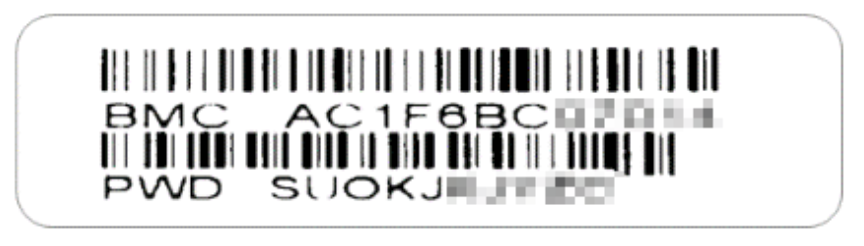
BMC Information: The Baseboard Management Controller (BMC) MAC address and default credentials (username: admin, password: ZTSI-00025) are provided on labels located on the system chassis. A slide-out tray with the label is accessible behind the front cover at the bottom of the system.
Operating System Requirements
The Tenstorrent TT-QuietBox (TW-04001) ships with Ubuntu 22.04 LTS (Jammy Jellyfish) pre-installed, optimized for performance with Tenstorrent Blackhole™ p150c Tensix Processors. This End-User Guide provides instructions for setting up the Baseboard Management Controller (BMC) to enable network connectivity. Once the BMC is configured and network details are provided to [ai]levate support, our team will remotely verify the Ubuntu installation and configure the Tenstorrent Software Stack for AI model deployment.
QSFP-DD Connections and System Topology (TW-04001)
The TT-QuietBox includes eight QSFP-DD 800GbE cables to create the processor mesh for the four Blackhole™ p150c Tensix Processors (16 ports total, 4 ports per card). To set up the connections:
- Refer to the system topology diagram provided in the documentation for port and slot numbering.
- Connect the eight QSFP-DD 800GbE cables according to the topology diagram. Ensure each cable is aligned correctly and clicks into place; do not force the connections.
- Verify connections by checking the link status LEDs on the QSFP-DD ports.
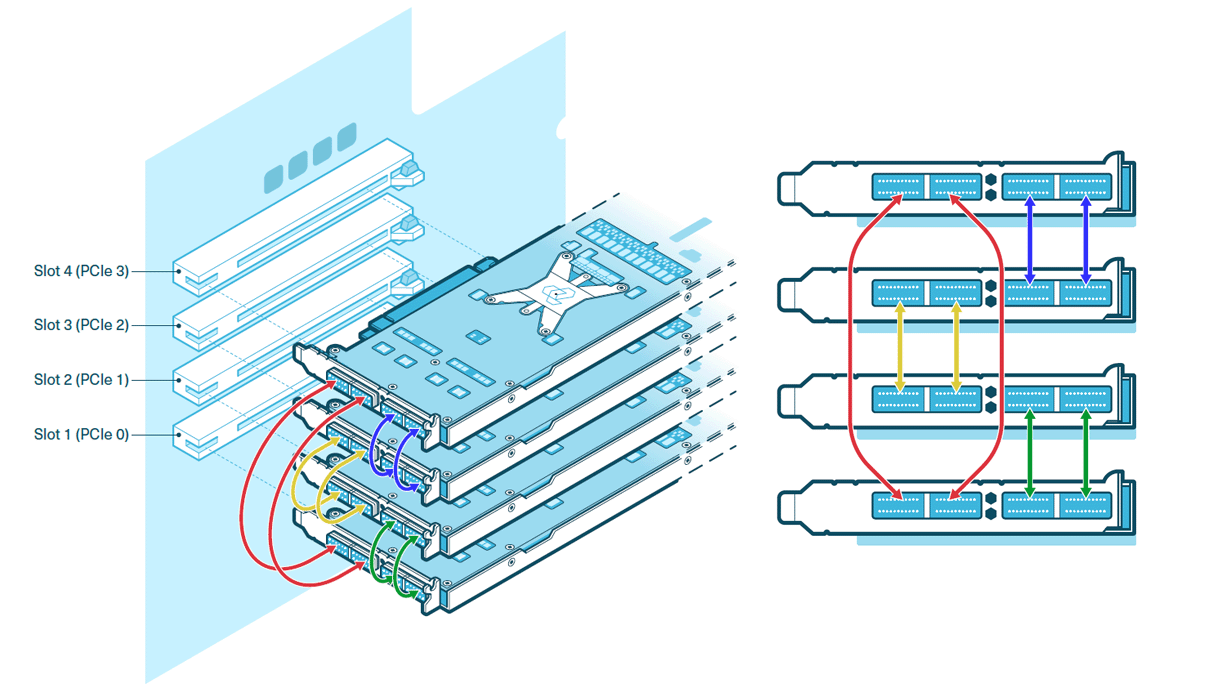

Note: The QSFP-DD cables are used exclusively for interconnectivity between the Blackhole™ p150c processors. Do not use these ports for host network connectivity; use the RJ45 ports (2x 10GBase-T, 2x 1GBase-T) for host system networking.
Environmental Specifications
The TT-QuietBox Liquid-Cooled Desktop Workstation is designed to operate at up to 35°C/95°F external ambient temperatures. Ensure the following environmental conditions are met:
- Place the workstation in a well-ventilated area with adequate airflow.
- Maintain ambient temperatures within the recommended range for the Blackhole™ p150c Tensix Processors (refer to Environmental Specifications in the documentation).
- Avoid environments with excessive dust, moisture, or vibration.
- Confirm that all vents are clear of obstructions or other objects.
- The system’s water-cooling system is pre-filled and sealed for long-term operation; do not attempt to open or modify it.
Safety Warnings
Electrical Safety
Danger: Failure to follow these electrical safety instructions may result in electric shock, fire, or damage to the equipment.
- Connect the system to a dedicated 20A AC power circuit with sufficient capacity to support the full power draw of the TT-QuietBox (1650W 80 PLUS Platinum PSU), including peak loads under heavy AI model execution.
- Do not share the outlet with other high-power devices. Avoid using household surge strips, extension cords, or multi-outlet power taps; not all are rated for the sustained current of this system.
- Use only the provided C13 power cable, and ensure it is plugged into a properly grounded outlet. Do not bypass or disable the grounding pin.
- Verify that the circuit wiring and breaker rating meet or exceed the system requirements, including liquid-cooling support and all accelerator cards.
- If the circuit becomes overloaded or if the breaker trips during power-up or operation, immediately disconnect and remove power. Then, have a qualified electrician inspect and verify the circuit’s capacity before resuming setup.
- Never attempt to reset or bypass a tripped breaker without first confirming the circuit integrity; failure to do so may result in overheating, voltage drop, or irreversible damage.
Electrostatic Discharge Safety
Important: Before opening the TT-QuietBox workstation or handling any internal components, you must discharge static electricity from your body to avoid damaging sensitive hardware. Electrostatic discharge can permanently damage Tensix cores, memory modules, or other components. Handle with care and always follow ESD-safe practices.
- Touch a grounded metal surface, such as the chassis or power supply casing, before and during internal handling.
- Ideally, wear an ESD wrist strap connected to a verified ground point.
- Avoid working on carpeted floors or in low-humidity environments where static buildup is more likely.
- Do not touch any processor, memory module, connector, or printed circuit board (PCB) circuitry unless absolutely necessary, and only after properly discharging.
Network Configuration and BMC Connection
The TT-QuietBox requires network connectivity for remote management and software configuration. Follow these steps to configure networking and connect the Baseboard Management Controller (BMC).

Step 1: Connect Ethernet to the BMC
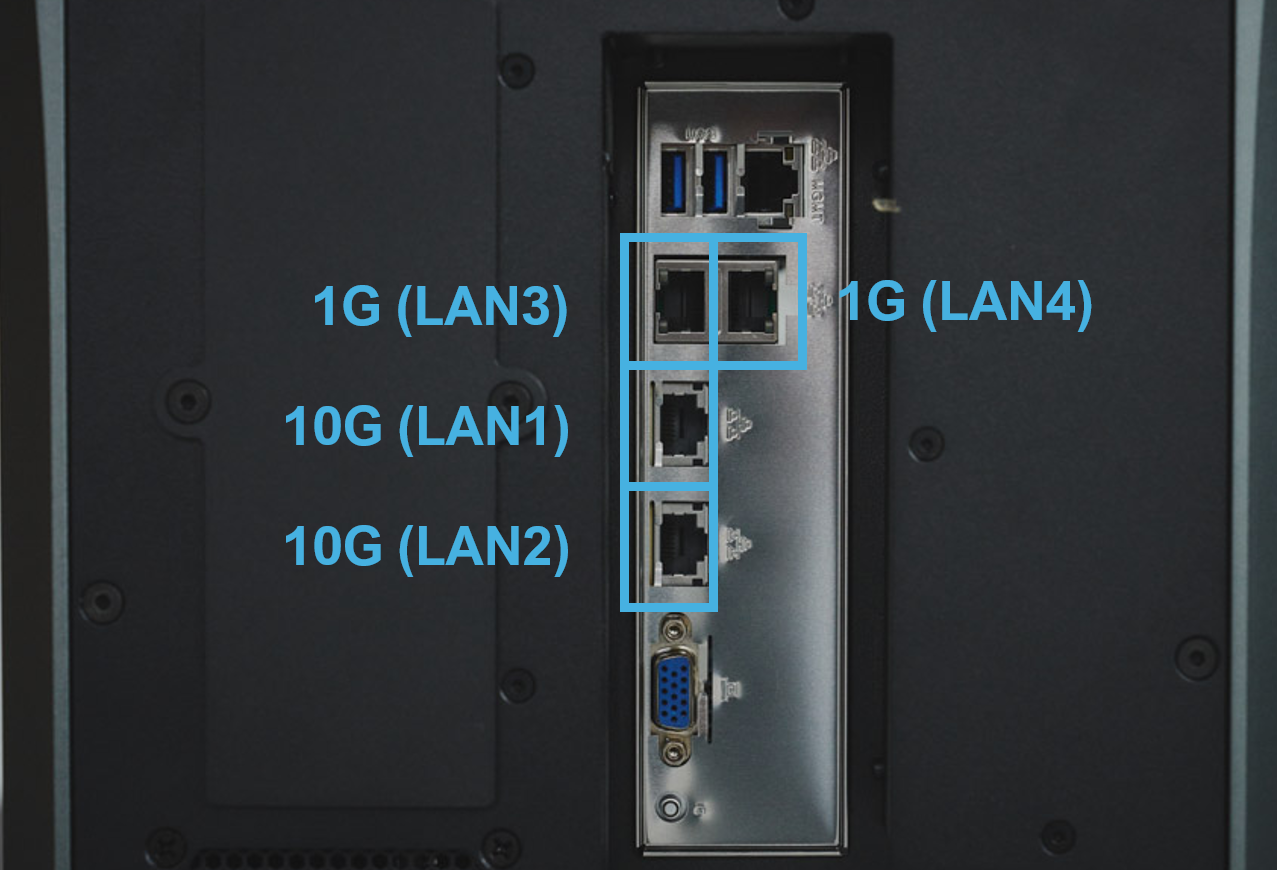
- Locate the BMC Port: The TT-QuietBox has an IPMI port (1x RJ45) for Baseboard Management Controller access. This is separate from the host system connectivity ports (2x RJ45 10GBase-T via Intel® X710 and 2x RJ45 1GBase-T via Intel® I210).
- Connect Ethernet: Plug an Ethernet cable into the IPMI port and connect it to your network switch or router.
- Verify Power: Ensure the TT-QuietBox is powered on and the BMC is active (check for indicator lights on the IPMI port).
Step 2: Configure BMC Network Settings
- Access the BMC:
- Use a computer on the same network to access the BMC web interface.
- Find the BMC IP address (default may be set via DHCP, or check the system label for a static IP, located on the chassis slide-out tray behind the front cover).
- Open a web browser and enter the BMC IP address (e.g.,
http://<BMC-IP-Address>). - Log in using the default credentials from the label (username: admin, password: ZTSI-00025).
- Set a Static IP (Recommended):
- Navigate to the Network Settings in the BMC web interface.
- Configure a static IP address, subnet mask, gateway, and DNS servers compatible with your network.
- Save the settings and reboot the BMC if prompted.
- Test Connectivity: From a computer, ping the BMC IP address to confirm connectivity (e.g.,
ping <BMC-IP-Address>).
Step 3: Connect Host Network
- Locate Host Network Ports: Use the 2x RJ45 10GBase-T ports (via Intel® X710) for high-speed host system connectivity or the 2x RJ45 1GBase-T ports (via Intel® I210) for additional connectivity.
- Connect Ethernet: Plug Ethernet cables into the desired RJ45 ports and connect to your network switch or router.
- Note MAC Addresses: Record the MAC addresses of the RJ45 ports (found on the system label or via the BMC interface) for network configuration.
Step 4: Connect QSFP-DD Cables
The TT-QuietBox (TW-04001 configuration) includes four Blackhole™ p150c Tensix Processors and requires eight QSFP-DD 800GbE cables to create the processor mesh topology (16 ports total, 4 ports per card).
- Locate Ports: Refer to the system topology diagram provided in the TT-QuietBox documentation for port and slot numbering.
- Connect Cables:
- Connect the eight QSFP-DD 800GbE cables according to the topology diagram. Each Blackhole™ p150c processor card has four QSFP-DD ports.
- Ensure each cable is aligned correctly and clicks into place; do not force the connections.
- Verify Connections: Ensure cables are securely connected and check for link status LEDs on the QSFP-DD ports.
Note: The QSFP-DD cables are used exclusively for interconnectivity between the Blackhole™ p150c processors. Do not use these ports for host network connectivity; use the RJ45 ports for host system networking.
Providing Network Information to [ai]levate
To enable remote verification and configuration of the pre-installed Ubuntu 22.04 LTS on your Tenstorrent TT-QuietBox, you must provide network access details to [ai]levate, the provider of this solution. An [ai]levate representative will work with your network team to configure the TT-QuietBox hardware, developed by [ai]levate’s partner, Tenstorrent, and set up the operating system with the specified networking parameters and user credentials. Please provide the following information to facilitate this process.
Required Network Information
- BMC IP Address: The static IP address assigned to the Baseboard Management Controller (BMC) during configuration (see Network Configuration and BMC Connection).
- BMC Credentials: Username and password for BMC access, found on the label on the TT-QuietBox chassis (behind the front cover, on the slide-out tray at the bottom of the system). Default credentials are username: admin, password: ZTSI-00025.
- Host Network Details:
- IP Address: Preferred static IP address for the host system (via the 2x RJ45 10GBase-T ports or 2x RJ45 1GBase-T ports) or confirmation to use DHCP.
- Subnet Mask: The subnet mask for the host network (e.g., 255.255.255.0 for a /24 network).
- Gateway: The default gateway for the host network (e.g., 192.168.1.1).
- DNS Servers: Primary and secondary DNS server addresses (e.g., 8.8.8.8, 8.8.4.4).
- Server Name: The desired hostname for the TT-QuietBox (e.g., quietbox01).
- MAC Addresses: MAC addresses of the 2x RJ45 10GBase-T ports (via Intel® X710) and 2x RJ45 1GBase-T ports (via Intel® I210), found on the system label or via the BMC interface.
- User Account Details:
- Username: The preferred username for the administrative account (e.g., ttuser).
- Password: A strong password for the administrative account, meeting security requirements (e.g., minimum 12 characters, including letters, numbers, and symbols).
- Network Access:
- Ensure the TT-QuietBox has internet access.
- Verify that firewalls allow connections on necessary ports, including:
- SSH: TCP port 22 for remote access.
- HTTP/HTTPS: TCP ports 80/443 for software downloads and updates.
- Any additional ports specified by [ai]levate for remote management.
Submission Instructions
- Compile Information: Gather all required network and user account details listed above.
- Secure Submission: Send the information securely to [ai]levate via the designated support channel (see Support and Contact Information).
- Coordinate with [ai]levate: An [ai]levate representative will contact your network team to confirm receipt of the information and schedule the remote installation of Ubuntu 22.04 Server.
Note: Ensure your network team is available to assist with any additional configuration or troubleshooting during the remote setup process.
Installing Ubuntu 22.04 LTS
Note: Tenstorrent TT-Quietbox hardware comes preinstalled with Ubuntu 22.04. [ai]levate representative will confirm with your network team that the TT-Quietbox is operational with the specified networking and user account settings, ready for the next steps (see Installing Tenstorrent Prerequisites).
Installing Tenstorrent Prerequisites
Note: The installation of Tenstorrent software prerequisites is performed remotely by an [ai]levate representative in collaboration with your network team, using the Tenstorrent TT-Quietbox hardware, developed by [ai]levate’s partner, Tenstorrent. The steps below are provided for transparency to outline the process. You do not need to perform these steps yourself.
Important: The recommended method for installing Tenstorrent software is the tt-installer tool. The manual installation steps below are used by [ai]levate representatives to ensure proper configuration. Each software utility references the latest available version at the time of writing, but compatibility must be verified using each SDK’s release compatibility matrix. The [ai]levate representative will consult these matrices to ensure the correct versions are installed.
Step 1: Install Software Dependencies
The [ai]levate representative will install essential software dependencies (git, wget, pip, dkms, and cargo) required for Tenstorrent software on Ubuntu 22.04 LTS.
Update Package Lists and Install Dependencies:
sudo apt update && sudo apt install -y wget git python3-pip dkms cargoNote: Installation on non-Ubuntu distributions (e.g., Fedora, Enterprise Linux) is experimental and not supported for the TT-Quietbox at this time.
Step 2: Install the Kernel-Mode Driver (TT-KMD)
The Tenstorrent Kernel-Mode Driver (TT-KMD) enables communication with the TT-Quietbox’s Wormhole™ n300s Tensix Processors.
Clone and Install TT-KMD:
git clone https://github.com/tenstorrent/tt-kmd.git
cd tt-kmd
sudo dkms add .
sudo dkms install tenstorrent/1.34
sudo modprobe tenstorrent
cd ..
Step 3: Device Firmware Update (TT-Flash / TT-Firmware)
The TT-Quietbox requires the latest firmware for the Wormhole™ n300s Tensix Processors, installed using the TT-Flash utility.
- Install TT-Flash:
pip install git+https://github.com/tenstorrent/tt-flash.gitNote: If an externally-managed-environment error occurs, the [ai]levate representative will use a Python virtual environment or pipx to resolve it.
- Update Device Firmware:
- Download the firmware package:
wget https://github.com/tenstorrent/tt-firmware/releases/download/v18.4.0/fw_pack-18.4.0.fwbundle- Flash the firmware:
tt-flash --fw-tar fw_pack-18.4.0.fwbundle- If an error indicates the firmware is too old, force the update:
tt-flash --fw-tar fw_pack-18.4.0.fwbundle --force- Reboot the system:
sudo rebootNote: The firmware version must be 18.3.0 or newer for compatibility with the TT-Quietbox’s Wormhole devices.
Step 4: Set Up HugePages
HugePages optimize memory allocation to accelerate communication with Tenstorrent devices.
- Install Tenstorrent Tools:
wget https://github.com/tenstorrent/tt-system-tools/releases/download/v1.3.1/tenstorrent-tools_1.3.1_all.deb
sudo dpkg -i tenstorrent-tools_1.3.1_all.deb- Enable HugePages Services:
sudo systemctl enable --now tenstorrent-hugepages.service
sudo systemctl enable --now 'dev-hugepages-1G.mount'- Reboot the System:
sudo rebootNote: If the above steps fail, the [ai]levate representative will check the latest release at TT-System-Tools for updates.
Step 5: (Optional) Multi-Card Configuration (TT-Topology)
Note: The TT-Quietbox ships with its topology preconfigured for the four Wormhole™ n300s Tensix Processors. This step is only performed if the topology has been modified or requires reconfiguration. If not applicable, the [ai]levate representative will skip this step.
- Install and Configure TT-Topology:
pip install git+https://github.com/tenstorrent/tt-topology
tt-topology -l mesh
Step 6: Install the System Management Interface (TT-SMI)
The Tenstorrent System Management Interface (TT-SMI) provides tools to monitor and manage the TT-Quietbox hardware.
- Install TT-SMI:
pip install git+https://github.com/tenstorrent/tt-smiStep 7: Verify System Configuration and Test TT-SMI
The [ai]levate representative will verify the system configuration by running the TT-SMI utility.
- Run TT-SMI:
tt-smi
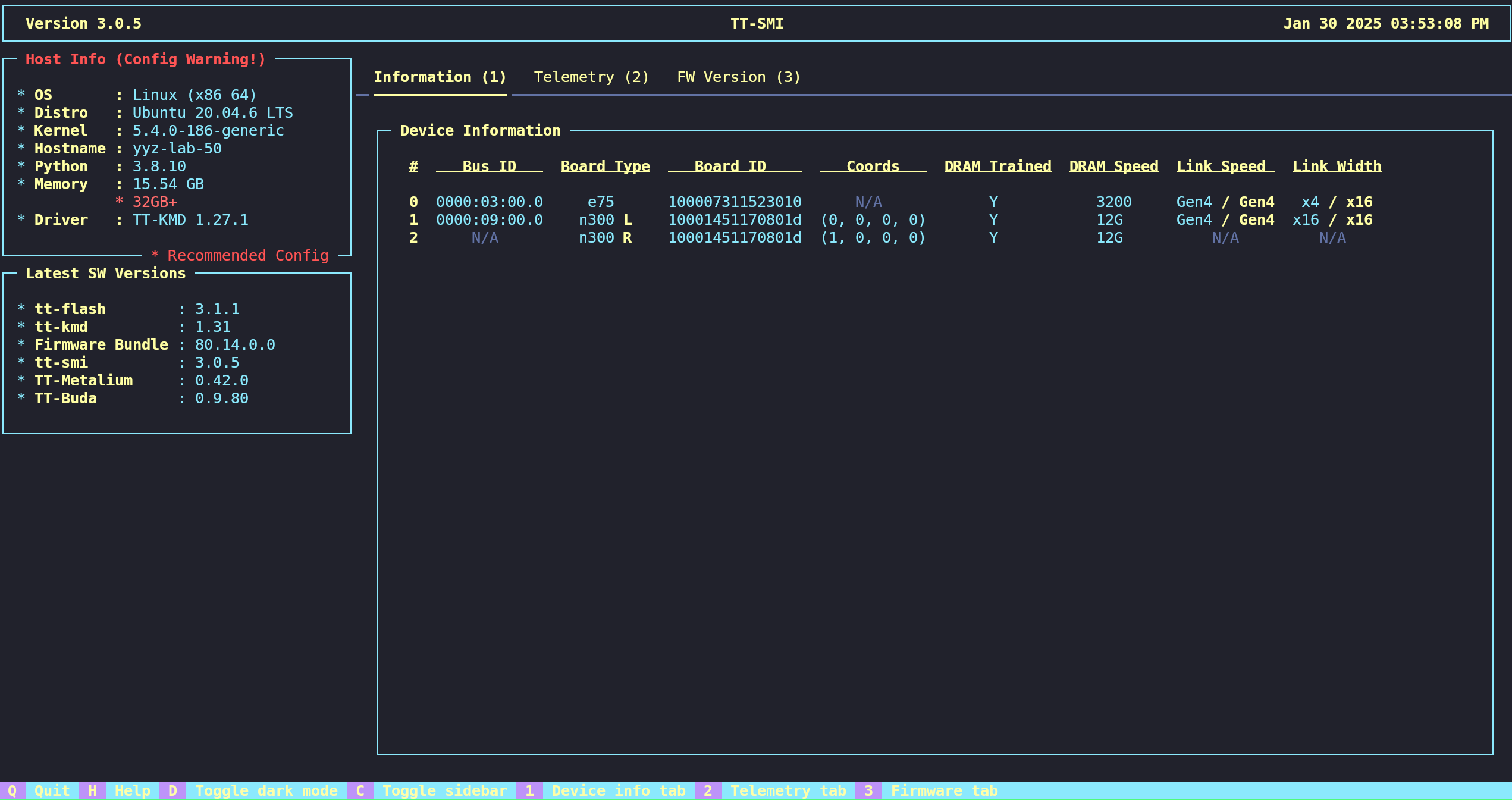
- Expected Output: The TT-SMI interface will display device information, telemetry, and firmware status, confirming that the TT-Quietbox hardware and prerequisites are correctly configured.
Note: Once the prerequisites are installed and verified, the [ai]levate representative will confirm with your network team that the TT-Quietbox is ready for the next steps (see Installing Tenstorrent Software).
Configuring the System and Model Setup
Note: The configuration of the Tenstorrent TT-Quietbox system and the setup of large language models (LLMs) are performed remotely by an [ai]levate representative in collaboration with your network team, using the TT-Quietbox hardware developed by [ai]levate’s partner, Tenstorrent. The steps below are provided for transparency to outline the process, including the installation of required software (tt-metal, tt-inference-server, and vllm), the transfer and deployment of LLMs from [ai]levate’s secure blob location, and the final verification using a vLLM API with OpenAI-compatible endpoints. You do not need to perform these steps yourself.
This section ensures the TT-Quietbox is configured to run AI models efficiently, leveraging the high-performance capabilities of the Wormhole™ n300s Tensix Processors. Large language models, due to their substantial size (often tens to hundreds of gigabytes), require significant storage and specialized software for deployment. The [ai]levate representative will handle the secure transfer, deployment, and API setup to enable seamless model inference.
Step 1: Install TT-Metal
Purpose: tt-metal is Tenstorrent’s software framework for programming and optimizing workloads on the Wormhole™ n300s Tensix Processors. It provides low-level APIs and tools to manage hardware resources, enabling efficient execution of AI models.
- Clone the TT-Metal Repository:
git clone https://github.com/tenstorrent/tt-metal.git --recurse-submodules
cd tt-metal- Install Dependencies:
- Install the required Python packages for development and runtime:
pip install -r tt_metal/python_env/requirements-dev.txt- Build and Install TT-Metal:
- Create a build directory and compile using Clang 17 (previously installed in Installing Tenstorrent Prerequisites):
mkdir build
cd build
cmake .. -G Ninja -DCMAKE_BUILD_TYPE=RelWithDebugInfo -DCMAKE_CXX_COMPILER=clang-17
ninja
ninja install- Set Python Path:
- Configure the Python environment to include the tt-metal installation:
export PYTHONPATH=$(pwd)Insight: tt-metal is critical for leveraging the TT-Quietbox’s hardware acceleration, enabling optimized tensor operations and memory management tailored to the Wormhole architecture. The [ai]levate representative ensures compatibility with the installed TT-KMD and firmware.
Step 2: Install TT-Inference-Server
Purpose: tt-inference-server is a high-level service that simplifies the deployment and management of AI models on Tenstorrent hardware. It provides a server-based interface for running inference tasks, abstracting low-level hardware details.
- Install TT-Inference-Server:
- Install the latest version from the Tenstorrent repository:
pip install git+https://github.com/tenstorrent/tt-inference-server- Verify Installation:
- Check that the server is installed correctly:
tt-inference-server --versionInsight: The tt-inference-server streamlines model deployment by providing a robust framework for handling inference requests, making it easier to integrate LLMs into client workflows. The [ai]levate representative configures this server to ensure seamless communication with the TT-Quietbox hardware.
Step 3: Install vLLM
Purpose: vLLM (Virtual Large Language Model) is an open-source library optimized for efficient LLM inference, supporting high-throughput and low-latency model execution. It complements tt-metal and tt-inference-server by providing additional optimizations for LLMs.
- Install vLLM:
- Install the version compatible with Tenstorrent hardware:
pip install vllm- The [ai]levate representative will consult the Tenstorrent SDK compatibility matrix to ensure the correct vllm version is installed.
- Verify Installation:
- Confirm that vllm is installed and accessible:
python -c "import vllm; print(vllm.__version__)"Insight: vLLM enhances the TT-Quietbox’s ability to handle large-scale LLMs by optimizing memory usage and inference speed. Its integration ensures that the client’s models run efficiently, leveraging the TT-Quietbox’s 512GB DDR4 memory and 3.8TB NVMe storage.
Step 4: Transfer and Deploy the Large Language Model
Purpose: LLMs are very large (often tens to hundreds of gigabytes), requiring secure and efficient transfer to the TT-Quietbox’s storage. [ai]levate manages this process to ensure data integrity and security, followed by model deployment for inference.
- Secure Model Transfer:
- The [ai]levate representative will securely transfer the LLM from [ai]levate’s secure blob storage to the TT-Quietbox’s 3.8TB U.2 NVMe drive.
- This process uses encrypted protocols (e.g., SFTP or HTTPS) to protect sensitive model data.
- The representative will coordinate with your network team to ensure sufficient bandwidth and verify storage space:
df -h /path/to/storage- Deploy the Model:
- Configure the model for inference using tt-inference-server and vllm:
tt-inference-server --model-path /path/to/transferred/model --config vllm- The [ai]levate representative will adjust configuration parameters (e.g., batch size, precision) based on the specific LLM and client requirements.
- Verify Model Deployment:
- Run a test inference to confirm the model is operational:
python - <<'PY'
from vllm import LLM
llm = LLM(model="/path/to/transferred/model")
print(llm.generate("Test prompt"))
PY- Check tt-smi for hardware utilization to ensure the model is leveraging the Wormhole™ n300s Tensix Processors:
tt-smiInsight: The secure transfer of LLMs is critical due to their large size and potential sensitivity. [ai]levate’s expertise ensures the model is transferred efficiently and deployed correctly, optimizing performance on the TT-Quietbox’s high-performance hardware.
Step 5: Final Verification and Handover
Purpose: The final verification ensures the TT-Quietbox is fully configured and ready for client use by setting up and testing a vLLM API with OpenAI-compatible endpoints. This allows the client to interact with the deployed LLM using standard API calls.
- Configure vLLM API with OpenAI Endpoints:
- The [ai]levate representative will configure the vLLM API to expose OpenAI-compatible endpoints:
vllm serve /path/to/transferred/model --host 0.0.0.0 --port 8000Example endpoint configuration:
- Base URL:
http://<host-ip>:8000/v1(e.g., http://12.134.255.3:8000/v1) - API Key: A secure key (e.g., somekey) for authenticated access, provided to the client.
- Model Name: The deployed model identifier (e.g., Qwen/Qwen3-32B).
- Test the API:
- The [ai]levate representative will verify the API using a test client script:
from openai import OpenAI

client = OpenAI(
    base_url="http://12.134.255.3:8000/v1",
    api_key="somekey"
)

response = client.chat.completions.create(
    model="Qwen/Qwen3-32B",
    messages=[{"role": "user", "content": "Test prompt"}]
)
print(response.choices[0].message.content)- Confirm that the API returns the expected response and that the model is functioning correctly.
Handover to Client:
- The [ai]levate representative will provide the client with:
- The API base URL (e.g., http://12.134.255.3:8000/v1).
- The API key (e.g., somekey).
- The model name (e.g., Qwen/Qwen3-32B).
- Documentation for interacting with the vLLM API using OpenAI-compatible endpoints.
- Verify system stability and performance:
tt-smiInsight: The vLLM API with OpenAI-compatible endpoints provides a standardized, user-friendly interface for interacting with the deployed LLM, enabling seamless integration into client applications. The [ai]levate representative ensures the API is secure, accessible, and optimized for the TT-Quietbox’s hardware.
Note: The [ai]levate representative will confirm with your network team that the TT-Quietbox is fully configured, the LLM is deployed, and the vLLM API is operational. The handover will include all necessary credentials and instructions for using the API. For further customization or additional model deployments, contact [ai]levate support (see Support and Contact Information).
Troubleshooting
Note: Troubleshooting of the Tenstorrent TT-Quietbox is managed by [ai]levate representatives in collaboration with your network team, using the TT-Quietbox hardware developed by [ai]levate’s partner, Tenstorrent. The steps below are provided for transparency to outline common troubleshooting procedures for both server hardware and Tenstorrent software components. You do not need to perform these steps yourself. If issues arise, contact [ai]levate support (see Support and Contact Information) for assistance.
This section covers troubleshooting for the TT-Quietbox’s SuperMicro SuperServer SYS-740GP-TNRT base system and Tenstorrent-specific components, such as the Wormhole™ n300s Tensix Processors and associated software (tt-metal, tt-inference-server, vllm). For comprehensive server hardware troubleshooting, refer to the Troubleshooting section of the SuperMicro SuperServer manual (Chapter 7).
Server Hardware Troubleshooting
The following procedures address common hardware issues with the TT-Quietbox’s base system. [ai]levate representatives will follow these steps or coordinate with your team as needed.
-
No Power:
- Verify the BMC heartbeat LED (LEDBMC) on the motherboard is on.
- Ensure power connectors are securely connected to the 1+1 Titanium Level PSUs (1200W at 100-127Vac, 1800W-2090W at 200-240Vac, or 2200W at 220-240Vac).
- Check for short circuits between the motherboard and chassis.
- Disconnect all cables and remove add-on cards, then test with a single CPU, heatsink, and power LED connected.
- Verify the CMOS battery supplies ~3VDC; replace if necessary.
- Confirm power supply input voltage (100-120V or 180-240V) and test the power switch.
-
No Video:
- Remove all add-on cards and cables, then test the system.
- Note any beep codes during power-up (see BIOS Error Beep Codes below).
-
System Boot Failure:
- Test with a single DIMM module installed to isolate faulty memory.
- Follow the memory errors troubleshooting procedure below.
-
Memory Errors:
- Ensure all 16x32GB DDR4-3200 ECC RDIMM modules are properly seated.
- Swap modules between slots to identify faulty DIMMs or slots.
- Confirm the power supply voltage switch is set correctly (115V/230V).
-
Losing System Setup Configuration:
- Verify the power supply quality and replace the CMOS battery if it does not supply ~3VDC.
- Contact [ai]levate support if the issue persists.
-
System Becomes Unstable:
- Confirm CPU compatibility and update to the latest BIOS version.
- Test memory modules using memtest86.
- Verify the 3.8TB U.2 NVMe drive functionality and replace if faulty.
- Check system cooling (heatsink fans, CPU/system fans) via BMC hardware monitoring.
- Ensure the power supply meets minimum requirements (200V for TW-02002).
- Verify that correct drivers are installed (e.g., TT-KMD).
-
BIOS Error Beep (POST) Codes:
- 1 short: Circuits reset, ready to power up.
- 5 short, 1 long: No memory detected.
- 5 long, 2 short: Video adapter missing or faulty.
- 1 long continuous: System overheat.
- Additional POST codes are available at AMI BIOS POST Codes User's Guide.
-
Crash Dump Using BMC:
- If an Internal Error (IERR) occurs, the [ai]levate representative will access the BMC web interface, check the Server Health > Event Log for errors, and download a crash dump for analysis.
-
UEFI BIOS Recovery:
- If the main BIOS is corrupted, the [ai]levate representative will use a USB device with the Super.ROM file to recover the BIOS:
- Copy Super.ROM to a FAT-formatted USB drive.
- Insert the USB, boot the system, and select “Proceed with flash update” in the BIOS Recovery menu.
- Complete the flash process and reboot.
- Update the BIOS settings to default and save.
- If the main BIOS is corrupted, the [ai]levate representative will use a USB device with the Super.ROM file to recover the BIOS:
-
CMOS Clear:
- To clear CMOS (and passwords), the [ai]levate representative will power down the system, remove the onboard battery, short the JBT1 contact pads for four seconds, and reboot.
-
BMC Reset:
- Reset the BMC by holding the UID button for six seconds (LED blinks at 2Hz).
- Restore factory defaults by holding for twelve seconds (LED blinks at 4Hz, clearing all settings except FRU and network).
Tenstorrent Software and Hardware Troubleshooting
The following steps address issues specific to Tenstorrent software and Wormhole™ n300s Tensix Processors, performed by [ai]levate representatives.
-
BMC Access Issues:
- Verify the BMC IP address and credentials via the system label.
- Check network connectivity:
ping <BMC-IP>. - Reset the BMC using the UID button (hold for six seconds).
-
Network Connectivity Issues:
- Confirm network settings:
ip address show. - Check firewall settings:
sudo ufw status. - Allow SSH if blocked:
sudo ufw allow 22. - Verify QSFP-DD cable connections for the Wormhole mesh (see QSFP-DD Connections and System Topology).
- Confirm network settings:
-
TT-SMI Failure:
- Ensure PCIe AER Reporting is set to “OS First” in BIOS (Chipset > AMD CBS > NBIO Common Options > NBIO RAS Common Options > PCIe AER Reporting Mechanism).
- Reinstall TT-SMI:
pip install --force-reinstall git+https://github.com/tenstorrent/tt-smi- Check hardware status:
tt-smi- TT-Flash or Firmware Update Failure:
- Verify the firmware version (must be 18.3.0 or newer).
- Force the update if needed:
tt-flash --fw-tar fw_pack-18.4.0.fwbundle --force- Reboot the system:
sudo reboot- vLLM API Issues:
- Confirm the vLLM server is running:
ps aux | grep vllm- Test the API endpoint:
from openai import OpenAI

client = OpenAI(base_url="http://<host-ip>:8000/v1", api_key="somekey")
response = client.chat.completions.create(model="Qwen/Qwen3-32B", messages=[{"role": "user", "content": "Test prompt"}])
print(response.choices[0].message.content)- Check network access to port 8000:
sudo netstat -tuln | grep 8000- Restart the vLLM server if necessary:
vllm serve /path/to/transferred/model --host 0.0.0.0 --port 8000- Model Inference Failure:
- Verify model path and integrity:
ls -lh /path/to/transferred/model- Check disk space:
df -h /path/to/storage- Re-run the test inference:
python -c "from vllm import LLM; llm = LLM(model='/path/to/transferred/model'); print(llm.generate('Test prompt'))"- Monitor hardware utilization:
tt-smiNote: If issues persist, the [ai]levate representative will escalate to Tenstorrent’s engineering team for specialized support, ensuring minimal disruption.
Support and Contact Information
For assistance with the Tenstorrent TT-Quietbox or any issues during setup, configuration, or operation, contact [ai]levate’s support team:
- Website: www.ailevate.com
- Email: [email protected]
- Support Portal: Visit www.ailevate.com/support for FAQs, documentation, and additional resources.
For server hardware issues, [ai]levate representatives may refer to the SuperMicro SuperServer manual or coordinate with SuperMicro support. For warranty or replacement parts, contact [ai]levate support, who will facilitate any necessary actions, including Returned Merchandise Authorization (RMA) requests.
Note: Do not attempt to replace components or perform hardware modifications without guidance from [ai]levate support to avoid voiding the warranty.
Updated 11 months ago