
Downloading a Claim EDI File
Process of how to download an EDI file for a claim within Revenue Recovery
Downloading a Claim EDI File
Ailevate Revenue Recovery automatically generates a corrected EDI 837 file when its AI agents identify and analyze a denied claim. The updated file can be downloaded directly from the Claim Flow.
How to Download the File
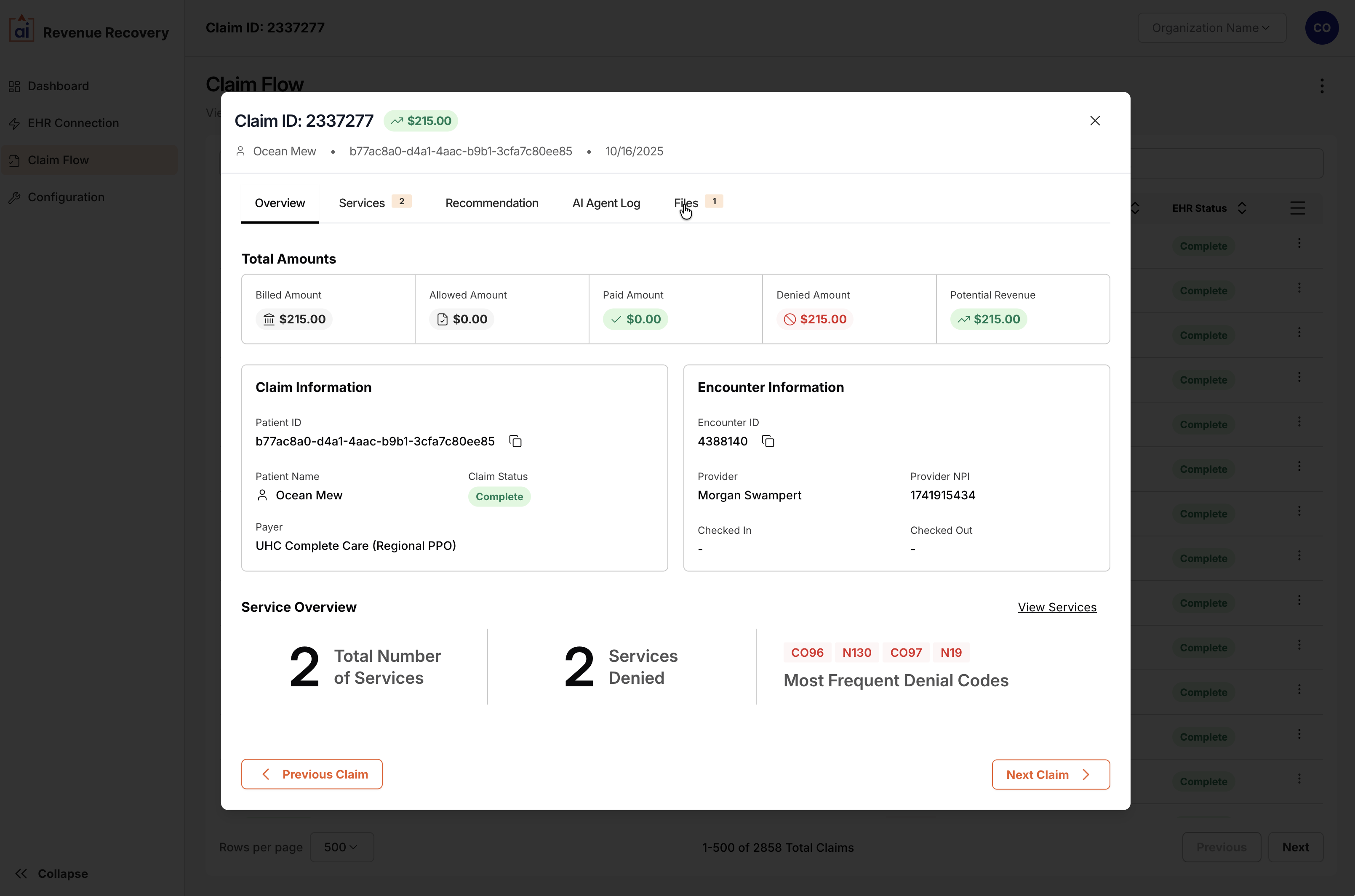
- When in Claim Details view, navigate to the Files tab.
- Click the Download button to download the claim EDI file.
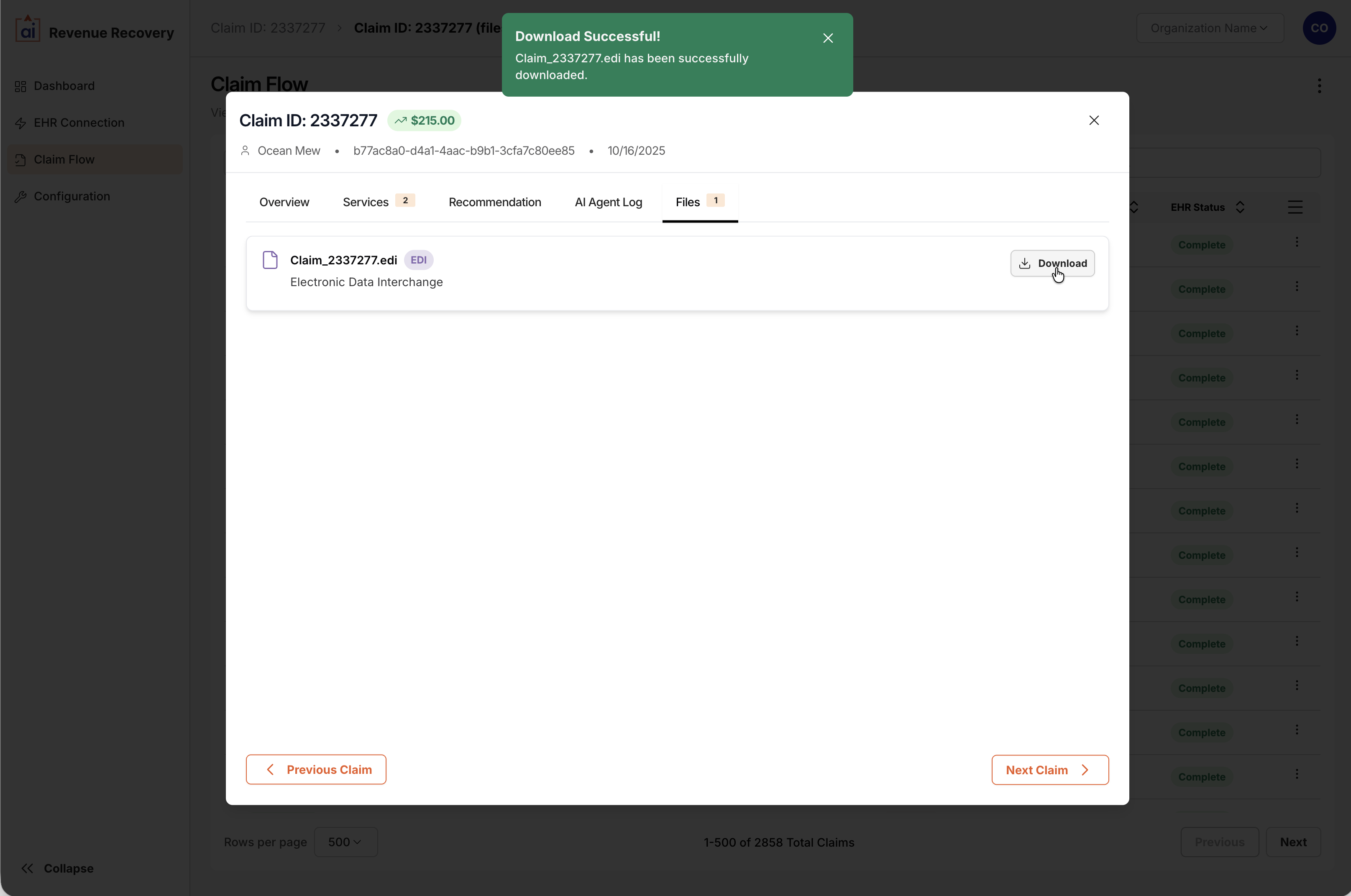
The file downloads automatically to your browser's default download location. The filename is based on the claim ID.
File Format
- Standard HIPAA-compliant EDI 837 format.
- Compatible with standard EDI translation software.
Updated 11 months ago
Did this page help you?