
Claims Processing Workflow
How to work with the core claims processing features
Working Denials in the Ailevate Revenue Recovery Claim Flow Page
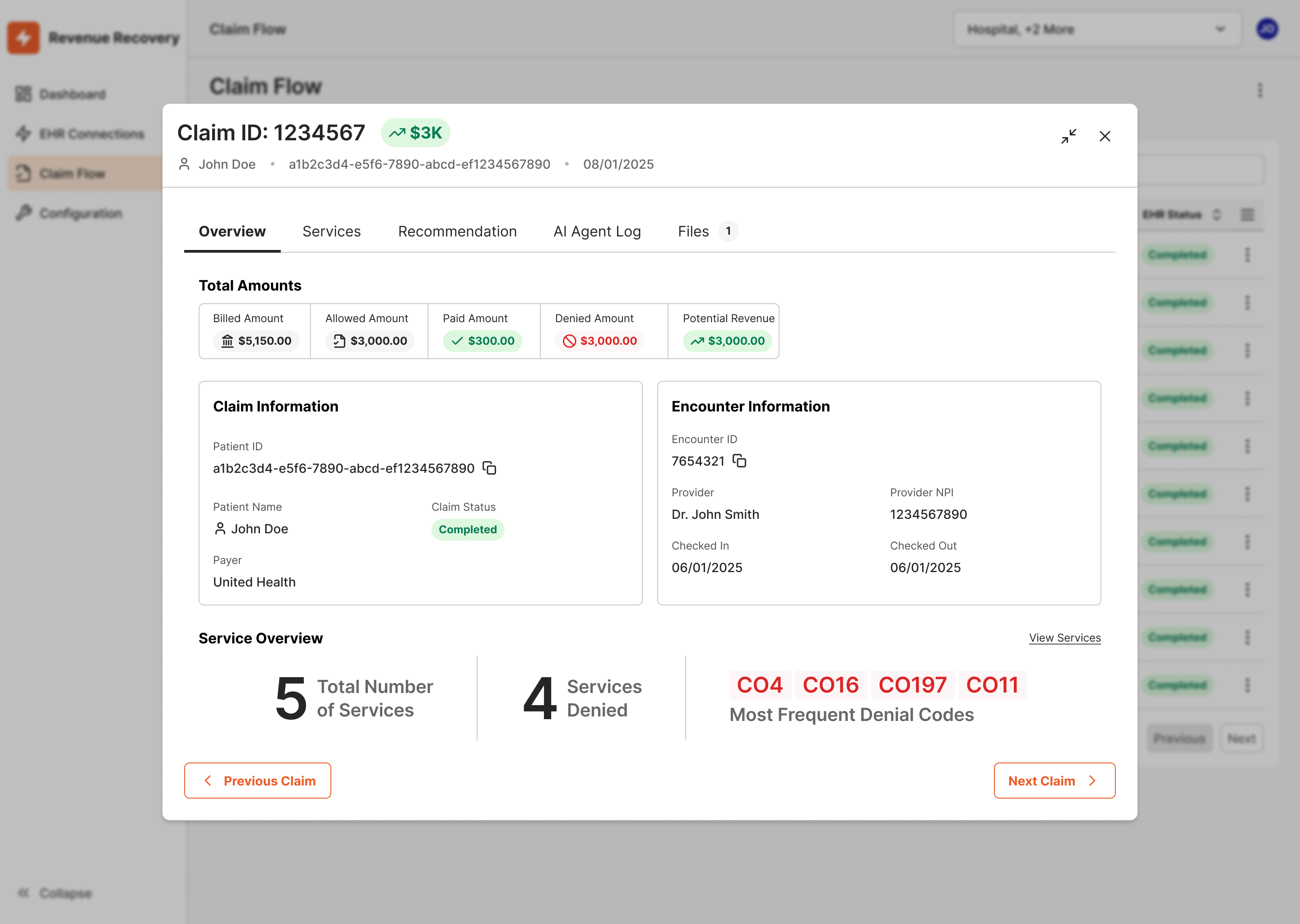
The Ailevate Revenue Recovery web application provides an in-depth view of each denied claim through the Claim Flow page.
This workflow supports billing leads, denial management teams, RCM directors, and compliance staff who require greater visibility into AI-driven recommendations, claim status, and overall financial performance.
Overview
The Claim Flow page offers a transparent, step-by-step view of how each denied claim was analyzed and processed by Ailevate Revenue Recovery’s AI workforce.
It combines structured payer data with patient-level information from your EHR to produce recommendations that are both financially and clinically informed.
Ailevate Revenue Recovery currently analyzes:
- 835 and 837 claim files to identify payment patterns and service-level denial details.
- Denial codes (CARC/RARC) to determine the root cause of each rejection.
- Relevant patient and encounter data from the EHR to provide context for correction recommendations.
This multi-source analysis ensures that users reviewing claims in the web app can understand how and why each recommendation was generated.
The web app workflow is best suited for roles that oversee denial management performance, validate AI accuracy, or conduct compliance reviews.
How It Works
1. Accessing the Claim Flow Page
Log into the Ailevate Revenue Recovery web application and navigate to the Claims section.
Select a denied claim from the list to open its Claim Flow view and explore its detailed breakdown.
2. Reviewing AI Recommendations
Each claim includes:
- Denial Overview: Payer information, CARC/RARC codes, and service-line level detail.
- AI Recommendations: Suggested corrections generated from analysis of payer and patient data.
- AI Confidence Score: A numerical indicator (0–100) representing how confident the AI is in each recommendation.
Future versions of Ailevate Revenue Recovery will include direct references to payer policies and contracts for each recommendation.
3. Providing Feedback
If you identify an issue with a recommendation, you can provide feedback directly on the Claim Flow page:
- Thumbs Up (👍): Confirm the recommendation is correct.
- Thumbs Down (👎): Indicate the recommendation is inaccurate.
- Comments: Optionally describe why it was incorrect or incomplete (for example, payer-specific exceptions or unique clinical cases).
This feedback is captured in the system and used to refine the AI model over time, improving future accuracy.
Example:
A team lead rejects a recommendation to add modifier 25 and comments, “Existing documentation already supports separate E/M billing.”
This information helps the AI better understand context in similar future cases.
4. Reviewing Claim Actions and Outputs
Within each Claim Flow page, you can view:
- Action History: A chronological log of all AI and user actions for audit and compliance tracking.
- Generated Files: Corrected 837 claim files available for export and review.
- Claim Status Indicators: Tags showing the current progress of each claim.
Sorting and Reviewing Claims
The Claims list view allows users to filter and sort claims based on relevant criteria, such as denial code, payer, or claim amount.
This makes it easier to focus reviews on high-impact denials or specific categories of interest.
Users can manually apply filters or sorting criteria on the claim list in the web application to focus on high-impact denials or specific categories.
However, claims are not automatically prioritized in the existing EHR task lists.
Key Benefits
- Comprehensive insight – Review the full reasoning behind every AI recommendation.
- Cross-functional visibility – Enable billing, finance, and compliance teams to align around a single view of denial performance.
- Continuous improvement – Structured feedback improves AI accuracy over time.
Best Practices
-
Review high-value or complex claims first.
Use sorting and filters to identify denials that warrant leadership or compliance review. -
Incorporate Claim Flow reviews into team meetings.
Use the Claim Flow page as a visual aid when discussing recurring denial patterns or evaluating AI accuracy. -
Encourage feedback from subject matter experts.
When unique payer rules or local exceptions apply, feedback ensures future recommendations become more precise.
Workflow Summary
| Step | Description | Intended For |
|---|---|---|
| 1. Access Claim Flow | Open denied claim in web app | Billing Lead / Analyst |
| 2. Review Recommendations | Examine AI reasoning combining payer and EHR data | Billing Lead / RCM Director |
| 3. Provide Feedback | Approve, reject, or comment on recommendations | Analyst / Compliance Reviewer |
| 4. Monitor Claim History | Track resolved denials and recovered revenue metrics | RCM Director / Executive |
Key Takeaway
The Ailevate Revenue Recovery web application gives teams the visibility and control needed to understand, validate, and continuously improve AI-assisted denial management.
By combining payer data, denial codes, and EHR patient context, the platform ensures every recommendation is both transparent and traceable — empowering leaders to monitor performance and strengthen future accuracy.
Updated 11 months ago