
Configuring Authentication
Configure Microsoft Entra ID and Magic Link authentication methods for secure platform access
Revenue Recovery provides flexible authentication options to integrate with your organization's identity infrastructure. Configure Microsoft Entra ID (formerly Azure Active Directory) for enterprise single sign-on, Magic Link for passwordless email authentication, or enable both methods for maximum flexibility.
Choosing Your Authentication Strategy:
Select authentication based on your existing infrastructure:
- Healthcare Systems with Microsoft 365 → Microsoft Entra ID provides seamless single sign-on and automatic role assignment
- Organizations Without SSO → Magic Link offers passwordless convenience
- Hybrid Environments → Enable both methods for internal staff (Entra ID) and external users (Magic Link)
Tip: Both methods can run simultaneously, providing flexibility while maintaining centralized access control.
Time Investment: Initial setup typically takes 30-60 minutes. This one-time configuration provides ongoing benefits throughout your platform's lifecycle.
Managing Authentication Status
Authentication settings are managed through Configuration → Authentication → Status. The Status page displays both available authentication methods with toggle controls:
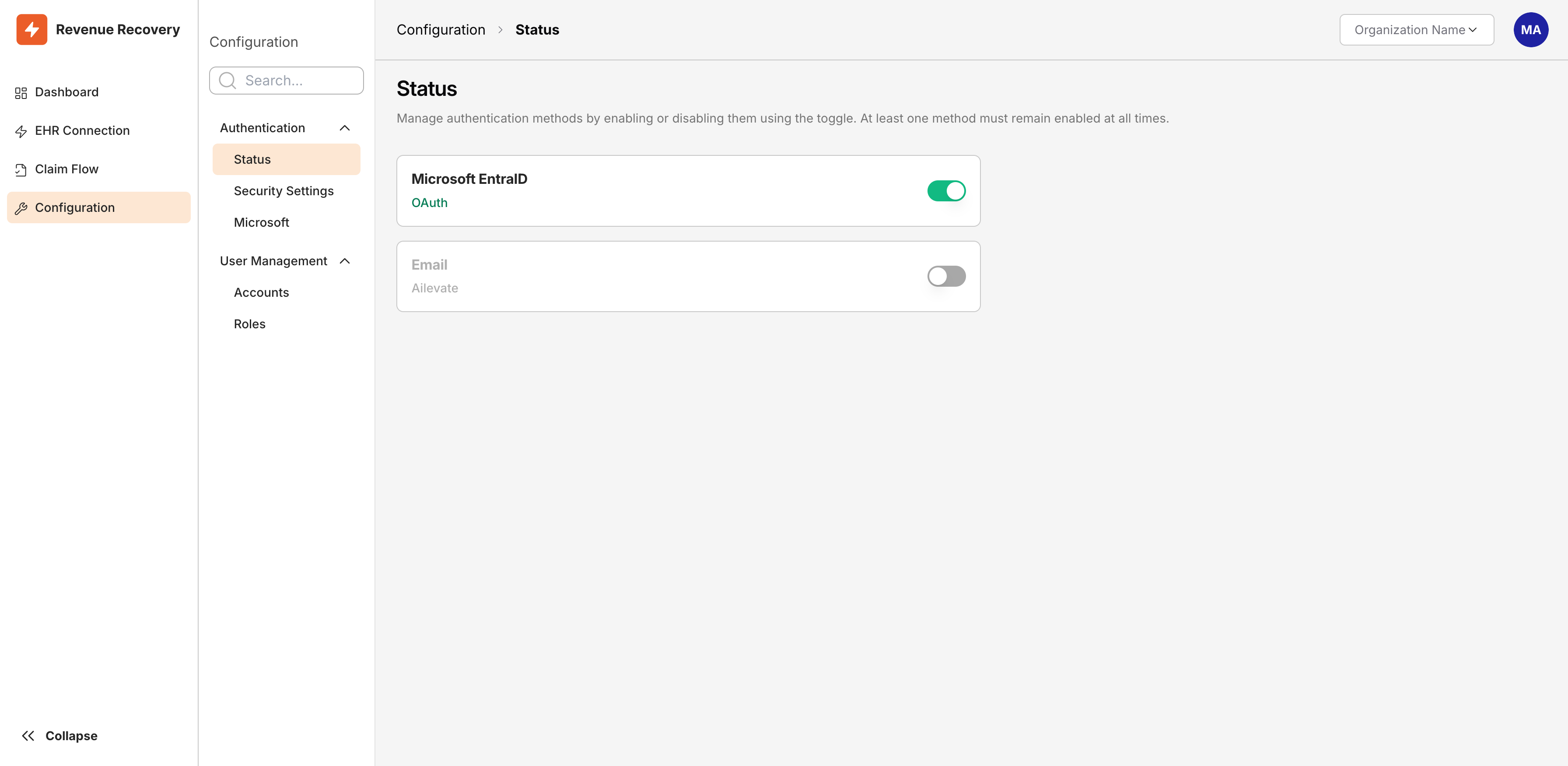
The Status page shows Microsoft EntraID (OAuth) and Email authentication with toggle controls to enable or disable each method
Each method shows its current state (Enabled or Disabled). Toggle between states as your needs change—for example, start with Magic Link and add Entra ID later as infrastructure evolves. At least one method must remain enabled at all times.
Configuring Microsoft Entra ID (OAuth)
Microsoft Entra ID integration enables enterprise single sign-on, allowing users to access Revenue Recovery with their Microsoft credentials. This eliminates additional passwords and enables group-based role management—ideal for healthcare organizations using Microsoft 365.
Prerequisites:
Before configuring Entra ID in Revenue Recovery, complete setup in the Microsoft Entra ID admin portal by registering Revenue Recovery as an application. Consult your IT or identity management team for the necessary credentials: Tenant ID, Client ID, and Client Secret.
If your organization is using its own Entra tenant and app registration, follow Set Up Your Own Microsoft Entra App for the full Microsoft-side procedure, including redirect URI, Graph permissions, admin consent, and client secret creation.
How It Works:
Microsoft Entra ID integration uses OAuth 2.0 to authenticate users through your organization's identity provider. When users access Revenue Recovery, they're redirected to Microsoft's login page where they authenticate with their corporate credentials. After successful authentication, Microsoft returns a secure token to Revenue Recovery confirming the user's identity and group memberships. Revenue Recovery uses these group memberships to automatically assign the appropriate role, granting immediate access without additional setup.
Configuration:
Navigate to Configuration → Authentication → Microsoft to access the configuration page:
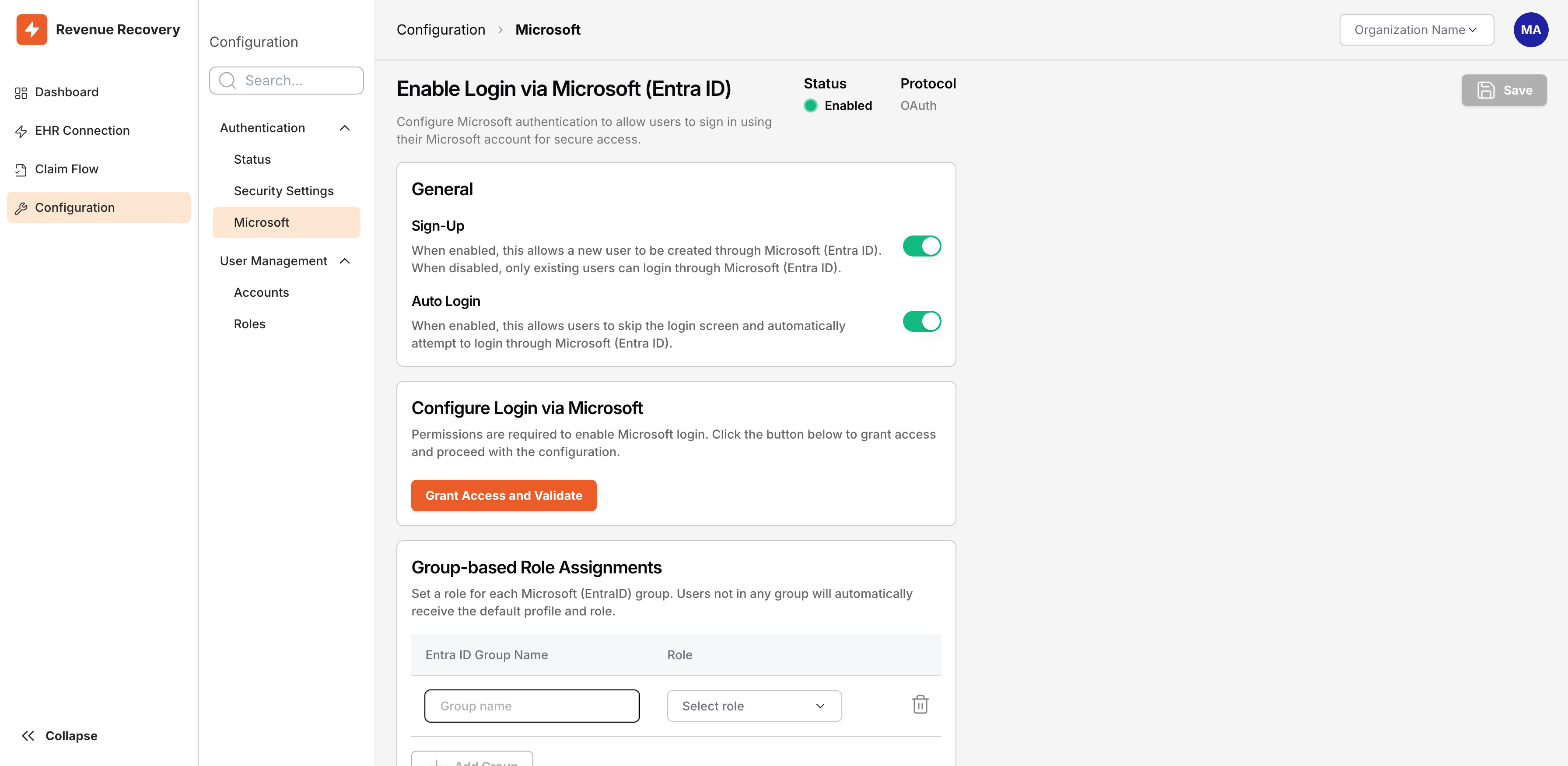
Microsoft Entra ID configuration page showing General settings (Sign-Up, Auto Login), Group-based Role Assignments, and Default Role selection
Configure the following settings:
General Settings:
- Sign-Up - Enable to allow new user creation through Entra ID; disable to restrict login to existing users only
- Auto Login - Enable to bypass the login screen and automatically attempt Entra ID authentication
Grant Access:
Click Grant Access and Validate to authorize Revenue Recovery to communicate with your Entra ID tenant. This step validates your configuration and enables authentication.
Group-based Role Assignments:
Map Entra ID groups to Revenue Recovery roles. Enter the Entra ID group name and select the corresponding role:
- Map "IT_Admins" → Administrator role
- Map "Billing_Team" → Contributor role
- Map "Executives" → Viewer role
Default Role:
Select the role assigned to users not in any mapped Entra ID groups. We recommend Viewer for least-privilege security.
After configuration, save your changes. Revenue Recovery immediately begins accepting Entra ID authentication.
User Groups and Role Assignment
Revenue Recovery uses group-based role management to streamline access control at scale.
Default Platform Groups
Three groups are automatically created during setup:
| Group | Assigned Role | Purpose |
|---|---|---|
| Administrators | Administrator | Full system access including user management, platform configuration, and all features |
| Contributors | Contributor | Create, edit, and manage content but cannot modify user roles or platform settings |
| Viewers | Viewer | Read-only access to view claims, reports, and data without modification capabilities |
Entra ID Group Mapping
When using Entra ID authentication, map existing Entra ID groups to Revenue Recovery roles. User access is automatically controlled by your organization's existing group structure—adding someone to the "Billing_Team" group in Entra ID automatically grants the appropriate Revenue Recovery role.
Configuration Steps:
-
Identify Entra ID Groups - Work with your IT team to identify groups needing Revenue Recovery access (e.g., "IT_Admins," "Billing_Team," "Revenue_Cycle_Managers")
-
Map Groups to Roles - In the Group-based Role Assignments section, map Entra ID groups to roles:
- "IT_Admins" → Administrator
- "Billing_Team" → Contributor
- "Executives" → Viewer
-
Set Default Role - Select the role for users not in any mapped group
Tip: Set default to Viewer for maximum security (least-privilege principle).
-
Multiple Group Memberships - Users in multiple Entra ID groups automatically receive the highest-privilege role. Example: A user in both "Billing_Team" (Contributor) and "IT_Admins" (Administrator) receives Administrator access.
Example Configuration:
For a hospital billing department with these Entra ID groups:
- "Hospital_IT_Admins" (5 members) → Administrator
- "Billing_Department" (25 members) → Contributor
- "Department_Heads" (8 members) → Viewer
- Default role: Viewer
With this setup, 38 users receive appropriate roles automatically. When a new billing specialist joins "Billing_Department" in Entra ID, they immediately gain Contributor access without administrator intervention.
Configuring Email Authentication (Magic Link)
Magic Link provides passwordless authentication through email-delivered one-time links. Ideal for organizations without identity provider infrastructure, external consultants without SSO access, or as backup authentication when primary systems are unavailable.
How It Works:
Users enter their email address on the login page. Revenue Recovery sends an email containing a secure, time-limited link. Clicking the link authenticates the user and grants platform access—no password required.
Configuration:
Navigate to Configuration → Authentication → Email (if available in UI) or configure through the Status page:
-
Enable Sign-Up - Allow new users to create accounts via Magic Link (self-service registration). When enabled, unknown email addresses receive account creation links. When disabled, only administrators can invite users.
Important: Consider security requirements before enabling self-service sign-up. Many healthcare organizations prefer administrator-controlled provisioning for strict access control. -
Link Expiration Time - Set how long Magic Links remain valid (typically 15-60 minutes). Shorter times increase security; longer times improve convenience. We recommend 30 minutes for balanced security.
-
Email Subject Line - Customize the subject for Magic Link emails. Clear subject lines prevent users from overlooking emails or mistaking them for phishing. Example: "Your Revenue Recovery Login Link"
-
Default Role - Role assigned to new self-service users. Set to Viewer for least-privilege access.
Tip: Test Magic Link with your email address before user rollout to verify delivery and check spam filters.
Best Practices
Enable Multiple Methods (Optional)
Consider enabling both authentication methods for flexibility. Magic Link provides reliable fallback when primary systems have issues and accommodates users without Entra ID access (consultants, external partners). Provide clear documentation on which method each user should use to prevent confusion.
Role Mapping Strategy
- Use Entra ID Groups - Leverage existing identity provider groups rather than manual assignments to reduce overhead and maintain synchronization with organizational access policies
- Document Mappings - Maintain clear documentation of group-to-role mappings and share with your IT team for easier troubleshooting and administrator handoffs
- Plan Default Carefully - Set the most restrictive role (Viewer) as default to enforce least-privilege access
- Regular Access Reviews - Schedule quarterly reviews to identify users needing permission changes based on role evolution
- Coordinate with IT - Work with your identity team to identify actively managed groups versus legacy structures
Security Considerations
- Protect Client Secrets - Treat Entra ID client secrets like passwords: store securely, rotate periodically, limit access
- Configure IP Allow Lists - Use IP Allow Lists (see Security Settings) alongside authentication to restrict access to known network locations
- Monitor Authentication Activity - Regularly review user sign-in activity to identify unusual patterns (see User and Role Management)
- Test Before Deploying - Test new authentication methods with trusted users before announcing to your entire team
Ongoing Maintenance
- Keep Client Secrets Current - Entra ID client secrets expire periodically. Set calendar reminders to rotate before expiration
- Review Magic Link Settings - Revisit expiration times and self-service sign-up settings as security posture evolves
- Update Group Mappings - Update Revenue Recovery mappings when your organization restructures teams or creates new Entra ID groups
Related Documentation
For End Users:
- Accessing the Platform - User-facing authentication instructions for signing in with Entra ID and Magic Link
For Administrators:
- Security Settings - Configure IP Allow Lists and Trusted Domain Lists for additional security layers
- User and Role Management - Manage user accounts, assign roles, and monitor platform access
- Set Up Your Own Microsoft Entra App - Register a customer-owned Entra application and connect it to Revenue Recovery
For Initial Setup:
- First Login and Setup - Onboarding workflow including quick authentication configuration
Questions about authentication? Your IT or identity management team can help with Entra ID integration. Platform administrators can assist with Magic Link configuration and role mapping.
Updated 4 months ago