
HTTP Status Codes
Understanding and resolving HTTP error codes (4xx client errors, 5xx server errors)
HTTP Status Codes
HTTP status codes are industry-standard response codes that web servers use to communicate the outcome of your request. When the Revenue Recovery platform encounters issues processing your request, it returns one of these codes. Understanding these codes helps you determine whether an issue requires your action or Ailevate support intervention.
How to View HTTP Status Codes
You'll typically see HTTP status codes in two ways:
- Browser Developer Console - Press F12 (Windows/Linux) or Cmd+Option+I (Mac) to open developer tools and view the Console or Network tab
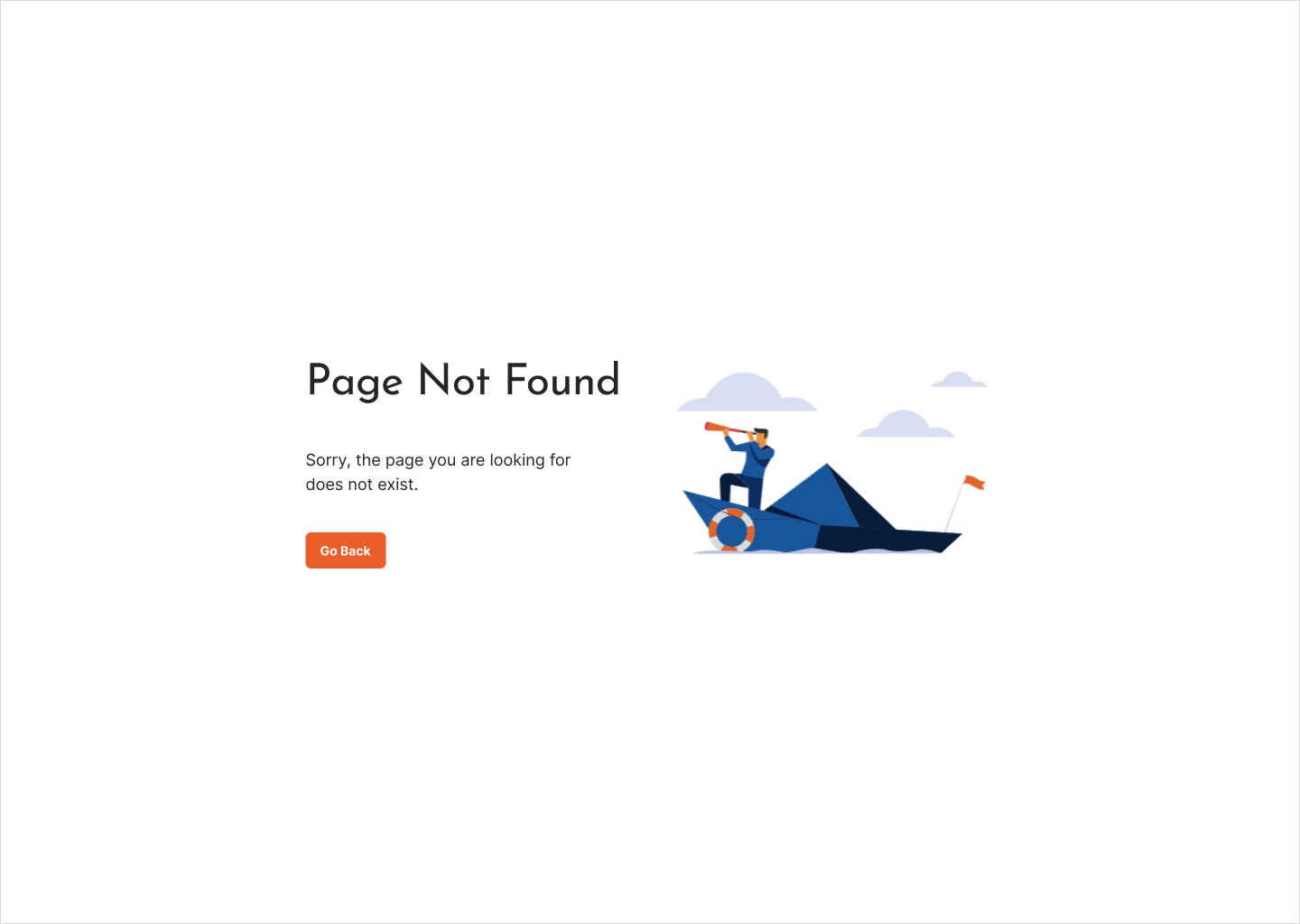
- Error Landing Pages - User-friendly error pages that display the status code along with helpful context and next steps
Error Category Overview
| Code Range | Category | Who Can Resolve | Common Causes |
|---|---|---|---|
| 4xx | Client Errors | User or Administrator | Invalid input, authentication issues, missing permissions |
| 5xx | Server Errors | Ailevate Support | Platform issues, unexpected server conditions |
5xx Server Errors
⚠️ Important: Server errors (5xx codes) indicate platform-level issues that require Ailevate's immediate attention. Always contact support for 5xx errors, as these are not something you can resolve on your own.
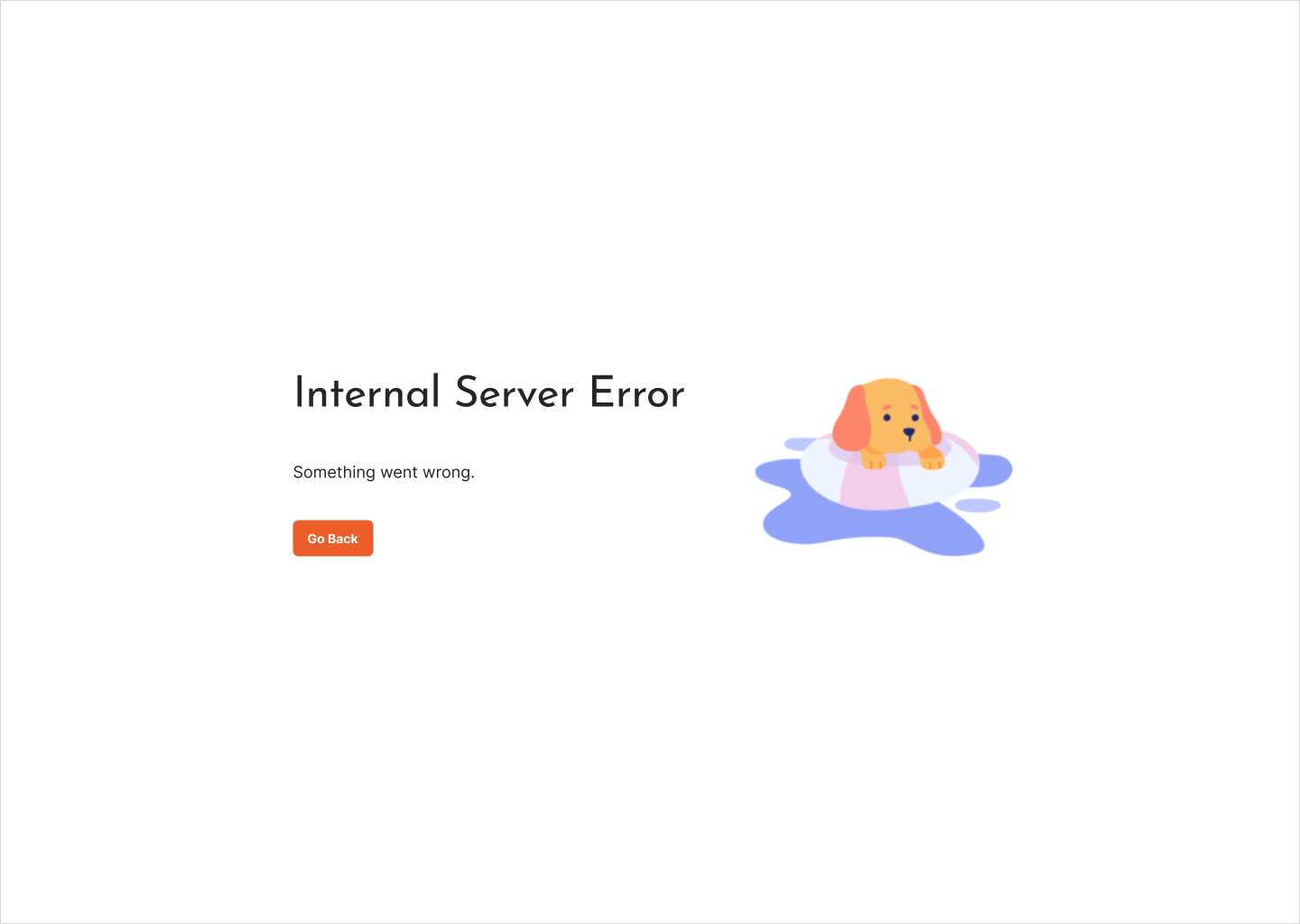
500 Internal Server Error
What it means: The server encountered an unexpected condition that prevented it from fulfilling your request. This is a general error indicating something went wrong on the platform side.
What causes it: Internal server issues, unexpected data conditions, or software bugs that weren't anticipated.
What to do:
- Note the time the error occurred and what you were doing
- Take a screenshot of the error message if visible
- Contact [email protected] immediately with:
- The timestamp of the error
- What action you were performing (e.g., "generating PDF export," "saving user role")
- Any error details visible on screen
- Steps to reproduce the issue
ℹ️ Note: The Ailevate engineering team is automatically alerted when 500 errors occur, but your report helps them understand the user impact and reproduction steps.
503 Service Unavailable
What it means: The platform is temporarily unable to handle your request. This typically occurs during scheduled maintenance, when the system is experiencing unusually high load, or when connection to the gateway is lost.
What causes it: Planned maintenance windows, system upgrades, temporary capacity constraints during peak usage periods, or gateway connectivity is lost.
What to do:
- Wait 2-3 minutes and try your request again
- Check if a maintenance notification was sent to your organization
- If the error persists beyond 10 minutes, contact [email protected] with:
- When you first encountered the error
- Whether it affects all features or specific functionality
- How many users in your organization are affected
💡 Pro Tip: If you encounter 503 errors during your organization's peak hours (such as end-of-month reporting), consider scheduling large operations for off-peak times.
Other 5xx Errors
502 Bad Gateway, 504 Gateway Timeout, and other 5xx codes all indicate server-side issues requiring Ailevate investigation. Follow the same process as 500 errors: document what happened and contact support immediately.
4xx Client Errors
Client errors (4xx codes) indicate that there's an issue with how your request was formed or with your authorization to access the resource. Many of these can be resolved by adjusting your input, checking permissions, or verifying your authentication status.
400 Bad Request
What it means: Your request was malformed or contained invalid data that the server couldn't process.
What causes it:
- Form data in an incorrect format (e.g., invalid date format, improper email address)
- Missing required fields in a submission
- Special characters or unsupported data in input fields
- Corrupted or improperly formatted file uploads
What to do:
- Review any form fields you just submitted for errors
- Check that dates are in the expected format (MM/DD/YYYY)
- Verify email addresses and phone numbers are properly formatted
- Remove any special characters or emoji from text fields
- If uploading a file, ensure it's in a supported format and not corrupted
- Try refreshing the page and re-entering your data
If the error persists after correcting your input, contact support with details about what you were trying to submit.
401 Unauthorized
What it means: You need to be authenticated to access this resource, or your authentication has failed or expired.
What causes it:
- Your session has expired due to inactivity
- Your authentication token is invalid or has been revoked
- You haven't logged in yet or your login failed
- Your credentials are incorrect
What to do:
- Log out and log back in to refresh your authentication
- For MagicLink authentication: Request a new magic link and verify you're using the correct email address
- For Microsoft EntraID: Re-authenticate through the OAuth flow
- Clear your browser cache and cookies, then log in again
- Verify you're using the correct credentials for your account
If you continue to see 401 errors after successfully logging in, this may indicate an issue with the authentication system. Contact support with details about your login method and when the error occurs.
See also: Configuring Authentication for authentication setup and troubleshooting.
403 Forbidden
What it means: You're authenticated (logged in), but you don't have permission to access this specific resource or perform this action.
What causes it:
- Your user role lacks the necessary permissions for this feature
- You're not a member of the organization that owns this resource
- Your IP address is not in the IP Allow List (if IP restrictions are enabled)
- The resource has specific access restrictions you don't meet
What to do:
- Verify your user role includes permissions for the feature you're accessing
- Check that you're viewing resources for an organization you belong to
- If IP Allow List is enabled, verify your current IP address is included
- Contact your organization administrator to:
- Adjust your role permissions if needed
- Add you to the appropriate organization
- Add your IP address to the Allow List
- If you believe you should have access, contact support with:
- Your username and role
- What resource or feature you're trying to access
- Your current IP address (if IP restrictions might apply)
See also:
- User Role Management for understanding role permissions
- Security Settings for IP Allow List configuration
404 Not Found
What it means: The page or resource you're trying to access doesn't exist at this URL.
What causes it:
- The resource has been deleted
- You have a typo in the URL
- You're using an outdated bookmark or link
- The resource has been moved to a different location
What to do:
- Check the URL for typos and correct them
- Return to the dashboard and navigate to the resource through the interface
- Verify the resource still exists (it may have been deleted by an administrator)
- Update any bookmarks to current URLs
- If you believe the resource should exist, contact your administrator to verify it wasn't deleted
Other 4xx Errors
The following client errors are less common but may occur under specific conditions:
-
405 Method Not Allowed - You're attempting an action that isn't supported on this resource. This typically indicates a technical issue with how the request was made. If you encounter this error, contact support with details about what you were trying to do.
-
408 Request Timeout - Your request took too long to complete, causing the server to stop waiting for a response. This often happens with large data exports or over slow network connections. Try reducing the scope of your request (e.g., use a smaller date range for reports) or retry when you have a more stable network connection.
-
429 Too Many Requests - You've exceeded the rate limit by making too many requests in a short time period. This is a protective measure to maintain platform performance. Wait a few minutes before trying again, and consider spacing out bulk operations.
Quick Reference Table
| Status Code | Error Name | User Action | Escalate To |
|---|---|---|---|
| 400 | Bad Request | Review and correct form input | Support if persists |
| 401 | Unauthorized | Re-authenticate / Log in again | Support if persists |
| 403 | Forbidden | Check permissions with admin | Administrator |
| 404 | Not Found | Verify URL / Navigate from dashboard | Administrator |
| 405 | Method Not Allowed | Contact support | Support |
| 408 | Request Timeout | Reduce request scope / Retry | Support if persists |
| 429 | Too Many Requests | Wait a few minutes / Retry | Self-resolve |
| 500 | Internal Server Error | Document error / Contact support immediately | Support |
| 502 | Bad Gateway | Document error / Contact support immediately | Support |
| 503 | Service Unavailable | Wait and retry / Check for maintenance | Support if persists >10min |
| 504 | Gateway Timeout | Document error / Contact support immediately | Support |
Need Help?
If you encounter HTTP status codes that persist after following these troubleshooting steps:
- Review the Common Error Messages overview for escalation guidance
- Check the Application-Specific Errors guide for systematic diagnostic approaches
- Contact support through the help widget in the bottom right corner
- Email [email protected] for urgent assistance with server errors
ℹ️ Note: HTTP status codes appear in your browser's developer console (press F12 to open it) and may also trigger user-friendly error pages with more specific guidance. If you see an error page, follow the instructions it provides rather than focusing solely on the status code.
Updated 11 months ago