
Toast Notifications
Interpreting success, warning, and error toast notifications and taking appropriate action
Toast notifications are temporary messages that appear in the top-right corner of your screen to provide immediate feedback on your actions. They use color coding and icons to quickly communicate status, helping you understand whether your action succeeded, requires attention, or failed. They're an essential part of the Revenue Recovery platform's communication system, keeping you informed about the success or failure of operations without interrupting your workflow.
Visual Characteristics
Toast notifications appear consistently in the top-right corner of the Revenue Recovery interface, just below the main navigation header. This consistent placement helps you develop a natural visual pattern: take an action, glance to the top right for confirmation.
| Type | Color | Icon | Behavior | When Used |
|---|---|---|---|---|
| Success | 🟢 Green | Checkmark ✓ | Auto-dismiss (5-10 seconds) | Action completed successfully |
| Warning/Error | 🔴 Red | X icon ✕ | Manual dismissal required | Action failed or attention needed |
Notification Duration
- Success notifications auto-dismiss after 5-10 seconds
- Warning/Error notifications require manual dismissal to ensure you've seen the message
Design Elements
- Close icon (X) in the top-right corner allows manual dismissal
- Action buttons appear on some notifications to help you respond directly (like "Set Up" or "Try Again")
Pro Tip: If you miss a notification before it auto-dismisses, look for visual indicators in the interface (such as updated status text, enabled features, or changed settings) to confirm your action's result. You can also check system logs for historical confirmation of operations.
Success Notifications
Success notifications appear with a green background and confirm that your action completed successfully. They provide immediate positive feedback and help you understand that your intended change has been applied to the platform.
What Success Notifications Tell You
Success notifications use a green background to indicate that an action or setting change completed successfully. You'll see these notifications when you:
Save configuration or settings changes:
When you update system-wide settings like security configurations, authentication methods, session timeouts, or other administrative settings, success notifications confirm your changes are now active across the platform.
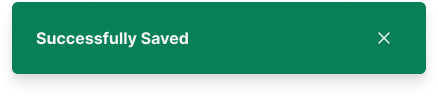
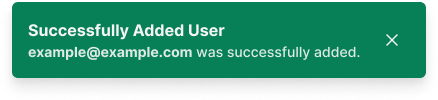
Perform user management actions:
In addition to configuration changes, you'll see success notifications when creating, updating, or deleting user accounts, assigning roles to users, or managing user permissions. These confirmations help you track completed operations, especially when performing multiple sequential actions.
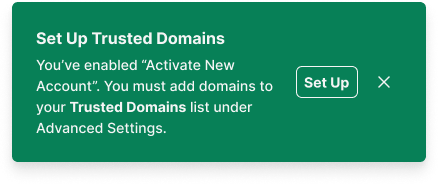
Enable features with additional setup:
Some success notifications do more than confirm—they provide next steps or guidance to ensure features work correctly. For example, when you enable "Activate New Account" without first configuring Trusted Domains, a success notification appears with a "Set Up" button that opens the configuration page you need to complete. This represents a hybrid approach: the action succeeded, but additional configuration is required for the feature to function properly.
Test connections to external systems: When configuring integrations with your EHR system or other data sources, success notifications confirm that connection tests completed successfully and the platform can access the specified systems using your provided credentials.
Complete file operations: Success notifications confirm when files download correctly to your local system, often including the filename for your reference so you can locate it in your downloads folder.
Warning and Error Notifications
Warning and error notifications appear with a red background to alert you when actions fail or when conditions require your attention. Unlike success notifications that auto-dismiss, error notifications remain visible until you manually dismiss them, ensuring you don't miss important information.
What Error Notifications Tell You
Error notifications use a red background to indicate that an action failed or was blocked. You'll see these notifications when:
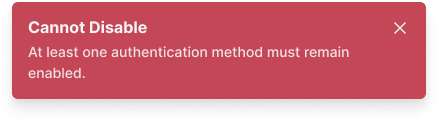
Permissions or security policies block an action:
Error notifications appear when you attempt actions that exceed your current role's permissions or when security policies prevent potentially harmful operations. For example, you'll see an error if you try to disable the last active authentication method, which would lock everyone out of the platform. These notifications explain why the action was blocked and often guide you toward the appropriate next steps, such as contacting your organization administrator for permission changes.
File operations or data processing encounters problems:
Error notifications alert you when file downloads fail, PDF exports encounter errors, or other data operations can't complete. These notifications typically suggest checking your network connection, verifying permissions, or adjusting parameters like date ranges for large datasets.
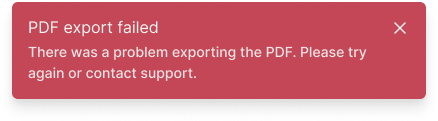
Feature prerequisites aren't met:
Some features require specific configuration before they can be enabled. When you try to enable a feature without completing its prerequisites, the system may automatically revert your change and display an error notification explaining what needs to be configured first. For example, enabling "Activate New Account" requires Trusted Domains to be set up first. The error notification includes a "Set Up" button that opens the configuration page you need to complete.
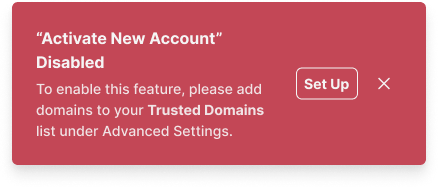
Your session expires:
After a period of inactivity, you'll see a notification indicating your session has timed out and you need to re-authenticate to continue working. To prevent unexpected timeouts, keep the platform tab active and interact with it periodically.
Special Notification Features
Some notifications include interactive elements that help you respond quickly to situations or complete related tasks.
Action Buttons
-
Try Again
Error notifications for failed user operations (like creating or removing users) include "Try Again" buttons that let you immediately retry the action with your previous input pre-filled. -
Set Up
Some notifications include "Set Up" buttons that direct you to configuration pages where you can complete required settings. These buttons appear in both success and error notifications when a feature requires additional configuration before it can function properly.
For example, if you enable "Activate New Account" without first configuring Trusted Domains, you'll see a "Set Up" button that opens the Trusted Domains configuration page in a new tab. This helps you complete necessary setup steps without losing your place in the interface.
Tip: Notifications with action buttons stay visible until you click the button or manually dismiss them, giving you time to respond.
Troubleshooting Persistent Notifications
If you encounter notifications that persist unexpectedly or notifications that don't match the descriptions in this guide, use this table to identify the appropriate troubleshooting steps:
| Issue Type | Troubleshooting Steps | What to Check |
|---|---|---|
| Error notifications that won't resolve | 1. Follow the specific guidance provided in the notification's body text (if present) 2. Check related documentation sections referenced in the notification 3. Verify your network connection and browser settings 4. Review your user role and permissions with your organization administrator 5. Check system logs for additional technical details | Notification body text, documentation links, network stability, user permissions, system logs |
| Missing or unclear notifications | 1. Look for visual indicators in the interface (updated status text, enabled features, changed settings) 2. Review the Common Error Messages overview for additional context 3. Check Application-Specific Errors for feature-related issues 4. Reference HTTP Status Codes and Landing Pages if operations reference specific error codes | Interface state changes, error message guides, feature-specific docs, HTTP status codes |
| When to contact support | 1. Notifications persist despite following troubleshooting guidance 2. Error notifications appear without clear cause or context 3. Success notifications appear but the expected change didn't occur 4. You encounter notifications not described in this documentation | Persistent errors, unexplained failures, documentation gaps |
Support Contact: When contacting support through the help widget in the bottom right corner or emailing [email protected], include: the exact notification text (header and body), what action you were performing when the notification appeared, your user role, and any error details or relevant screenshots.
Need Help?
Toast notifications are designed to be self-explanatory, but if you need additional context:
- Review the Common Error Messages overview for broader error context
- Check Application-Specific Errors for feature-specific troubleshooting
- Reference HTTP Status Codes and Landing Pages for technical error details
- Contact support through the help widget in the bottom right corner
- Email [email protected] for assistance with persistent issues
Updated 11 months ago