
Creating a Contract
How to create a new payer contract using the AI Agent, including uploading standard charges.
Contracts are created using the Ailevate AI Agent, which processes your uploaded standard charges file and structures the contract data for use in claim analysis.
Before You Begin
You will need:
- The payer name (searchable from Ailevate's directory of 3,500+ payers)
- The organization(s) this contract applies to
- Contract effective and end dates
- A CSV file containing your standard charges (codes, rates, and plan information)
If you don't have a CSV ready, a template is available on the Create Contract page. The model Ailevate uses is strongly influenced by CMS Price Transparency machine-readable files.
Steps
- Navigate to True Pay in the left sidebar.
- Select the Contracts tab.
- Click + Create Contract in the top right.
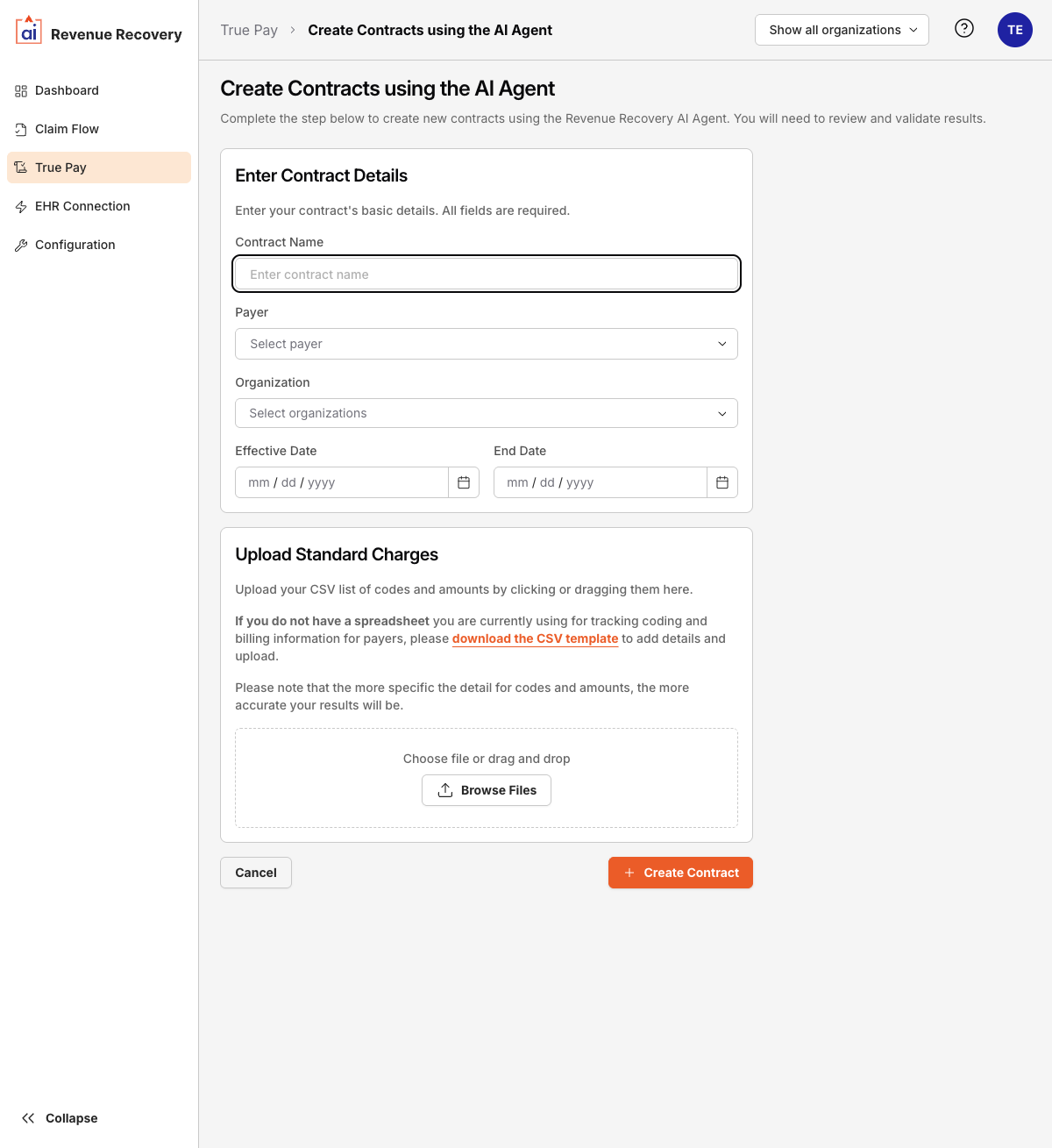
- Under Enter Contract Details, fill in all required fields:
- Contract Name — a descriptive name to identify this contract
- Payer — select from the payer dropdown
- Organization — select one or more organizations this contract applies to
- Effective Date — the date the contract becomes active
- End Date — the date the contract expires
- Under Upload Standard Charges, provide your charges file:
- Drag and drop a CSV into the upload zone, or click Browse Files
- If you don't have a file yet, click download the CSV template to get the correct format, fill it in, and upload it
- Click + Create Contract.
The AI Agent processes your upload and creates the contract. You will be taken to the contract detail page where you can review, validate, and activate the results.
After Creation
New contracts are created with a status of Draft. The AI populates the Standard Charges based on your uploaded file. Review the charges on the Standard Charges tab before activating. When the contract is ready, click Activate Contract to change its status to Active and make it available for claim analysis.
CSV Format
The standard charges CSV should include one row per service code. The following columns are supported:
| Column | Description |
|---|---|
description | Human-readable description of the service |
code_type | The coding system (e.g. CPT, HCPCS, DRG — see Supported Code Types) |
code | The procedure or service code |
setting | The care setting (e.g. inpatient, outpatient) |
drug_unit_of_measurement | Unit of measurement for drug charges (e.g. mg, mL) |
drug_type_of_measurement | Type of measurement for drug charges |
minimum_charge | Floor reimbursement amount |
maximum_charge | Ceiling reimbursement amount |
gross_charge | Full undiscounted charge |
discounted_cash | Cash-pay discounted rate |
additional_generic_notes | Free-text notes about the charge |
payer_id | The payer's unique identifier |
payer_name | The payer name |
plan_type | The plan type (PPO, HMO, EPO, or POS) |
methodology | Reimbursement methodology (Case Rate, Fee Schedule, Percent of Total Billed Charges, Per Diem, or Other) |
standard_charge_dollar | The contracted reimbursement dollar amount |
standard_charge_algorithm | Optional algorithm or formula for rate calculation |
standard_charge_percentage | Percentage used when methodology is percent-based |
estimated_amount | Expected reimbursement amount |
additional_payer_notes | Notes specific to payer requirements |
modifiers | Any applicable billing modifiers |
The more specific your codes and amounts, the more accurate the AI's claim analysis will be. Charges with missing rates will appear as
--in the contract and will not be used for underpayment detection until updated.
Updated 6 months ago