
Contract Details
Understanding the contract detail view, including general information, standard charges, provisions, and modifiers.
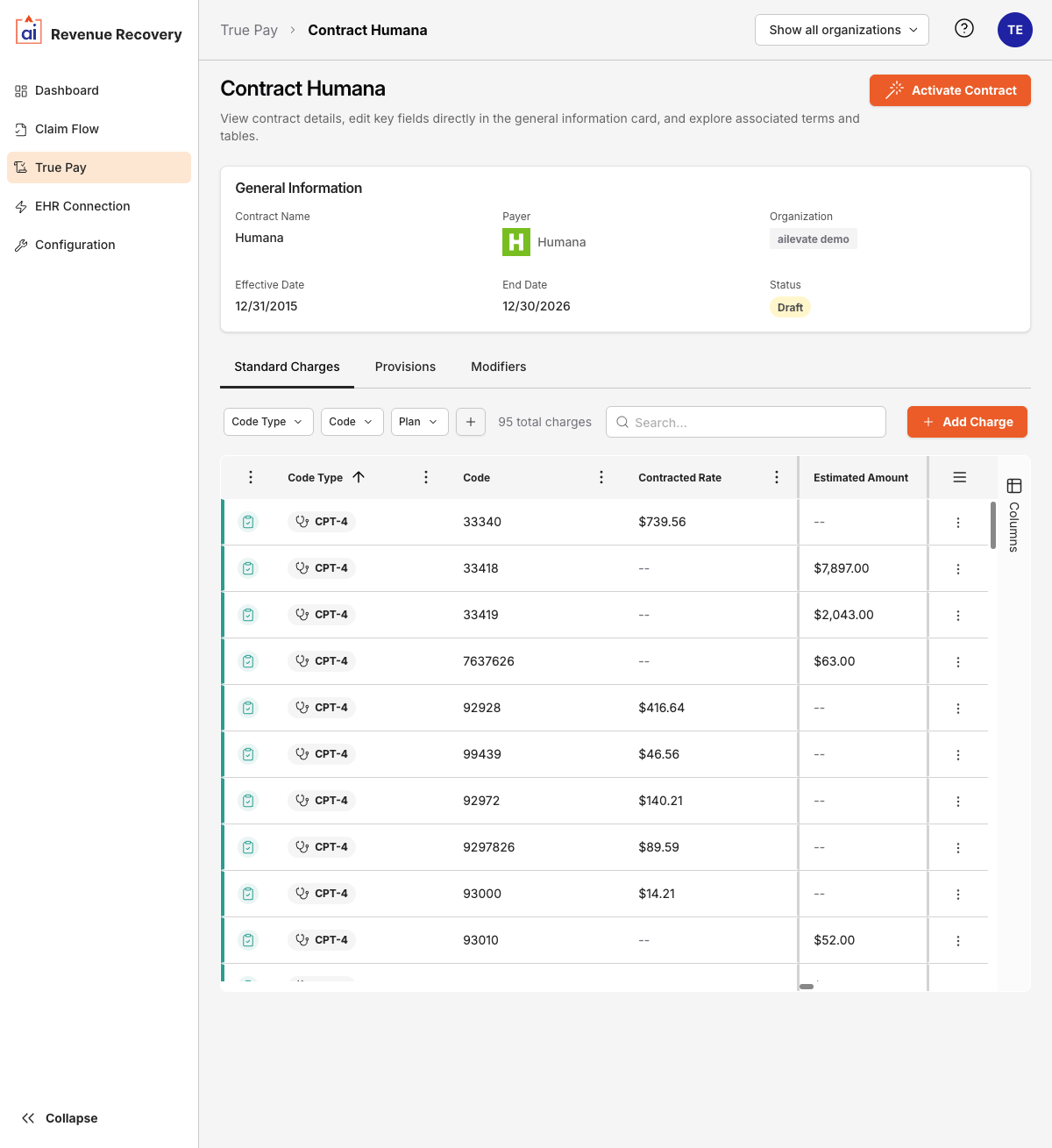
The Contract Detail view opens when you click a contract in the Contracts list. It shows the full contract record and lets you manage its charges, provisions, and modifiers.
Activating a Contract
Contracts created via the AI Agent start in Draft status. When you are ready to use a contract for claim analysis, click the Activate Contract button at the top of the detail view. This changes the contract's status to Active.
Contracts cannot be used by the AI for underpayment detection until they are Active.
General Information Card
The card at the top of the page shows the contract's core fields:
| Field | Description |
|---|---|
| Contract Name | The name given to this contract |
| Payer | The insurance payer, shown with logo where available |
| Organization | The organization(s) this contract applies to |
| Effective Date | The date the contract becomes active |
| End Date | The date the contract expires |
| Status | Draft, Active, or Expired |
Tabs
The detail view has three tabs:
Standard Charges
The individual service codes and rates that make up this contract. See Standard Charges for full documentation.
Provisions
Contract-level terms and conditions associated with a plan type. See Provisions for full documentation.
Modifiers
Billing modifier adjustments that affect how charges are reimbursed. See Modifiers for full documentation.
Updated 6 months ago