
Managing Contracts
How to view, search, filter, and manage the full list of payer contracts.
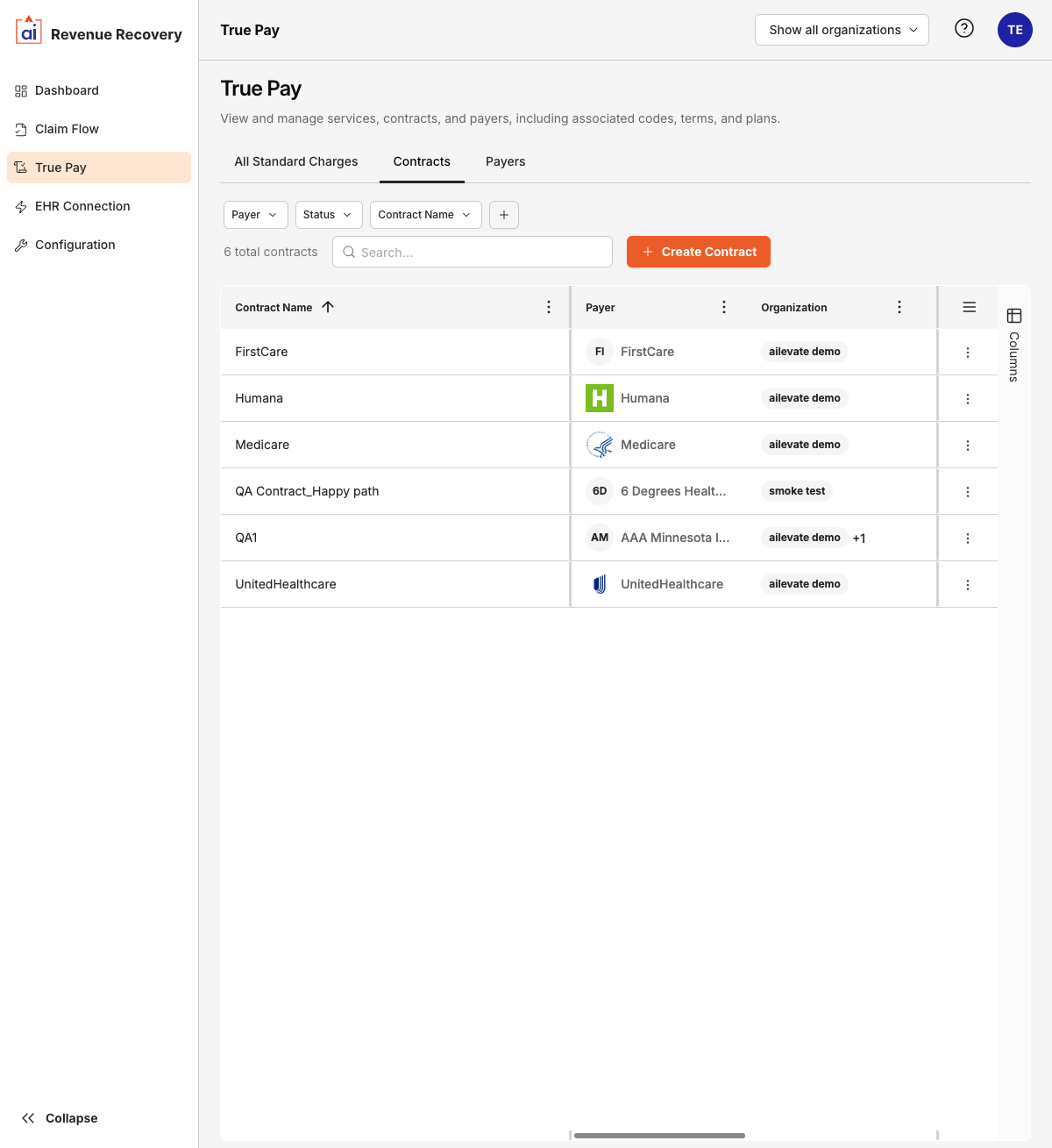
The Contracts tab in TruePay is the central list of all payer contracts in your organization.
Contract List
Each row displays:
- Contract Name
- Payer (with logo where available)
- Organization(s) linked to the contract — if multiple organizations are linked, the list is truncated with a
+Nindicator - Effective Date
- End Date
Contract Status
Contracts have three possible statuses:
- Draft — the contract has been created but not yet activated. It is not used in claim analysis until activated. A Draft contract shows an Activate Contract button in the detail view.
- Active — the contract is activated and the current date falls within its effective and end date range. It is used by the AI for claim analysis.
- Expired — the end date has passed. The contract is no longer used for new claim analysis.
Searching and Filtering
Use the Search bar to find contracts by name. You can also filter the list using the filter buttons:
- Payer — narrow to contracts for a specific payer
- Status — show only Draft, Active, or Expired contracts
- Contract Name — filter by name prefix or keyword
- + Add Filter — add additional filter criteria
Opening a Contract
Click any contract row to open the Contract Detail view, where you can review and edit the contract's general information, standard charges, provisions, and modifiers.
Updated 6 months ago
Did this page help you?